
View > Show/Hide > Rulers & Grids and uncheck Grid
Canon imageFORCE C5100 Series

OpenCore Legacy Patcher

Experience macOS just like before
https://dortania.github.io/OpenCore-Legacy-Patcher/START.html#how-do-i-get-started
https://dortania.github.io/OpenCore-Legacy-Patcher/MODELS.html
Near-native OTA updates
Install updates from System Settings, with just couple more additional steps compared to native.
Zero firmware patching
Using the capabilities of the OpenCore boot manager, our protocol upgrades are done in memory and are never permanent.
Supporting more hardware
New life is breathed into your decade-old graphics card, WiFi, and Bluetooth chipsets. Even your upgraded hardware receives benefits by unlocking exciting features like Hardware Acceleration, AirDrop, Apple Watch Unlock, Sidecar, and much more!
Unlock newer features
Unlock some newer features such as Sidecar, AirPlay to Mac, Night Shift, and Universal Control, even on natively supported models!
A helpful community
Whether it's getting started or learning the specifics, you can always find answers with our amazing community of tinkerers, developers, and dreamers.
Silence iPhone
Turn Silent mode on or off
When Silent mode is on, iPhone doesn’t ring or play alerts or other sound effects (but iPhone may still vibrate). When Silent mode is off, iPhone plays all sounds.
On models with an Action button: Go to Settings > Sounds & Haptics, then turn Silent mode on or off.
You can also configure the Action button to turn Silent mode on or off, in addition to other functions. See Use and customize the Action button on iPhone.
On other models: Flip the Ring/Silent switch toward the back of your iPhone to turn Silent mode on. Flip it toward the front to turn Silent mode off.
Important: Clock alarms, audio apps such as Music, and many games play sounds through the built-in speaker, even when Silent mode is on. In some countries or regions, the sound effects for Camera, Voice Memos, and Emergency Alerts are played, even when the Ring/Silent switch is set to silent.
Silence iPhone by turning on Do Not Disturb
You can temporarily silence calls, alerts, and notifications by turning on Do Not Disturb.
Tap Focus, then tap Do Not Disturb.
When Do Not Disturb is turned on, you won’t hear ringtones or text tones for incoming calls, texts, or notifications. Also appears in the status bar at the top of the screen.
Mac mini M4 power button
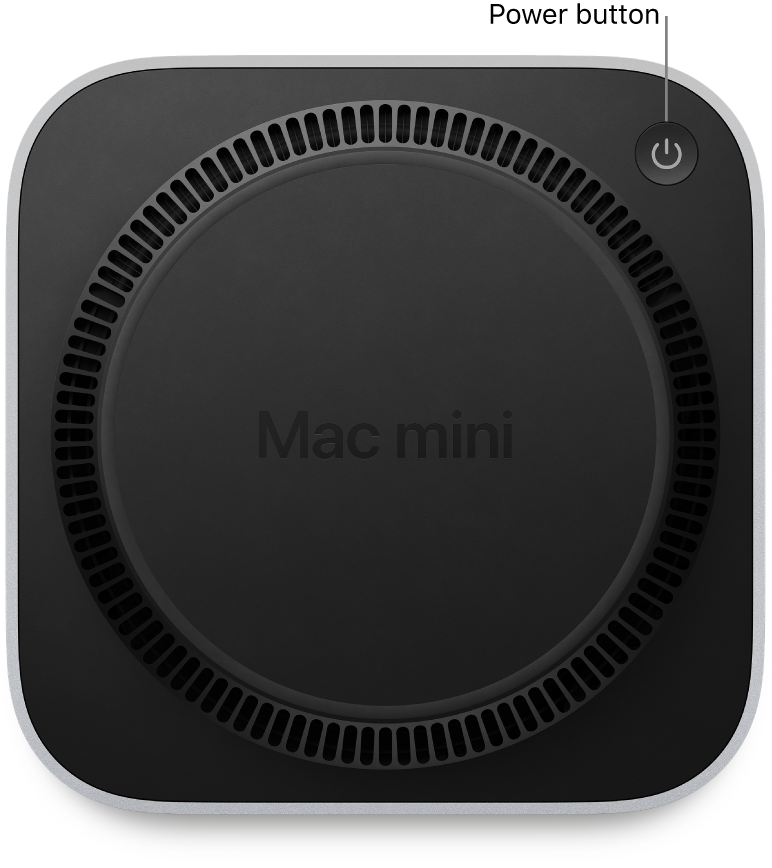
(located on the bottom)
Apple Silicon Boot Recovery
Use macOS Recovery on a Mac with Apple silicon
macOS Recovery is the built-in recovery system on your Mac.
You can use the apps in macOS Recovery on a Mac with Apple silicon to repair your computer’s internal storage, reinstall macOS, restore your files from a Time Machine backup, set the security policy for different volumes, transfer files between two Mac computers, start up in safe mode, and more.
Reinstalling macOS requires an internet connection. To connect to the internet, you can use a wireless or wired network connection. If you’re trying to connect to Wi-Fi through a captive portal (for example, at a coffee shop, library, or hotel) or an enterprise network, you might not be able to access the internet in macOS Recovery. See Connect to the internet using Wi-Fi.
Apps available in macOS Recovery on a Mac with Apple silicon
The following apps are available in macOS Recovery on a Mac with Apple silicon:
Recovery: The Recovery app provides access to additional apps in macOS Recovery. See Start up your computer in macOS Recovery, Start up your computer in macOS Recovery and pair Bluetooth input devices, and Quit macOS Recovery.
Time Machine System Restore: Restore your data from a Time Machine backup. In the Recovery app, select “Restore from Time Machine,” then click Continue. To return to the Recovery app, choose Time Machine System Restore > Quit Time Machine System Restore. See Use Time Machine to restore your files.
Install macOS: Reinstall macOS on your computer. In the Recovery app, select Reinstall macOS [name], then click Continue. To return to the Recovery app, choose Install macOS [name] > Quit Install macOS. See Reinstall macOS.
Web Browser: In the Recovery app, select Web Browser, then click Continue. When you go to the browser, this page is displayed. If you’re connected to the internet, you can use the browser to search the web. To set the search engine the browser uses, choose Web Browser > Search Engine, then choose a search engine. To return to the Recovery app, choose Web Browser > Quit Web Browser.
Disk Utility: Repair or erase your computer’s internal storage. In the Recovery app, select Disk Utility, then click Continue. To return to the Recovery app, choose Disk Utility > Quit Disk Utility. See Erase and reinstall macOS and Repair your computer’s internal storage.
Startup Security Utility: Set the security policies for your Mac. In the Recovery app, choose Utilities > Startup Security Utility. To return to the Recovery app, choose Startup Security Utility > Quit Startup Security Utility. See Change the security policy.
Terminal: Change settings via the command line. In the Recovery app, choose Utilities > Terminal. To return to the Recovery app, choose Terminal > Quit Terminal.
Share Disk: Share the disk of a Mac that’s started up in macOS Recovery. In the Recovery app, choose Utilities > Share Disk. See Use Share Disk to transfer files between two Mac computers.
Startup Disk: Set the startup disk for the Mac. Choose Apple menu > Startup Disk. To quit the app, choose Startup Disk > Quit Startup Disk.
You can also use macOS Recovery to perform the following tasks:
Start up your computer in macOS Recovery
On your Mac, choose Apple menu > Shut Down.
Wait for your Mac to shut down completely. A Mac is completely shut down when the screen is black and any lights (including in the Touch Bar and keyboard) are off.
Press and hold the power button on your Mac until the system volume and the Options button appear.
Click the Options button, then click Continue.
If asked, select a volume to recover, then click Next.
Select an administrator account, then click Next.
Enter the password for the administrator account, then click Continue.
When the Recovery app appears in the menu bar, you can choose any of the available options in the window or the menu bar.




