Connect Mac to WiFi

menu-bar-wifi-networks.jpg

Connect to a Wi-Fi network

Click  in the menu bar, then choose a network. If Wi-Fi is off, click , then select Turn Wi-Fi On.*

If you connect to a public Wi-Fi network, a window might appear with terms and conditions you're asked to agree to before you can connect.

Connect to a secure Wi-Fi network

Secure Wi-Fi networks are password-protected and have  by their names. 

  1. Click  in the menu bar. If Wi-Fi is off, click , then choose Turn Wi-Fi On.*

  2. Choose a network.

  3. Enter the password, then click Join. If you don't know the password to the Wi-Fi network, contact the network administrator.

iPhone Personal Hotspot

ios12-iphone-x-settings-personal-hotspot-enabled.jpg

Set up Personal Hotspot

  1. Go to Settings > Cellular or Settings > Personal Hotspot.

  2. Tap Personal Hotspot, then tap the slider to turn it on.

How to set up a Personal Hotspot on your iPhone or iPad

A Personal Hotspot lets you share the cellular data connection of your iPhone or iPad (Wi-Fi + Cellular) when you don't have access to a Wi-Fi network.

Set up Personal Hotspot

  1. Go to Settings > Cellular or Settings > Personal Hotspot.

  2. Tap Personal Hotspot, then tap the slider to turn it on.

If you don't see the option for Personal Hotspot, contact your carrier to make sure that you can use Personal Hotspot with your plan.

Connect to Personal Hotspot with Wi-Fi, Bluetooth, or USB

You can connect to a Personal Hotspot using Wi-Fi, Bluetooth, or USB. Here are some tips for using each method.

When you connect a device to your Personal Hotspot, the status bar turns blue and shows how many devices have joined. The number of devices that can join your Personal Hotspot at one time depends on your carrier and iPhone model. If other devices have joined your Personal Hotspot using Wi-Fi, you can use only cellular data to connect to the Internet from the host device. 

Use these steps to connect:

Wi-Fi

On the device that you want to connect to, go to Settings > Cellular > Personal Hotspot or Settings > Personal Hotspot and make sure that it's on. Then verify the Wi-Fi password and name of the phone. Stay on this screen until you’ve connected your other device to the Wi-Fi network.

On the device that you want to connect, go to Settings > Wi-Fi and look for your iPhone or iPad in the list. Then tap the Wi-Fi network to join. If asked, enter the password for your Personal Hotspot.

Bluetooth

To make sure that your iPhone or iPad is discoverable, go to Settings > Bluetooth and stay on that screen. Then on your Mac or PC, follow the manufacturer directions to set up a Bluetooth network connection. Learn more about using Personal Hotspot with Bluetooth.

Personal Hotspot supports Bluetooth connections with Mac, PC, and other third-party devices. To connect another iOS device, use Wi-Fi.

USB

Make sure that you have the latest version of iTunes on your Mac or PC. Then connect your iPhone or iPad to your computer with the USB cable that came with your device. If you see an alert that says tap "Trust This Computer?" tap Trust.

Learn more about connecting a device to your iPhone or iPad's Personal Hotspot.

Disconnect devices

To disconnect a device, turn off Personal Hotspot, turn off Bluetooth, or unplug the USB cable from your device.

Set or change your Wi-Fi password

You need to set a Wi-Fi password in order to set up a Personal Hotspot. To change the Wi-Fi password, go to Settings > Cellular > Personal Hotspot or Settings > Personal Hotspot, then tap the Wi-Fi password.*

Choose a Wi-Fi password that's at least eight characters long and use ASCII characters. If you use non-ASCII characters, other devices will be unable to join your Personal Hotspot. Non-ASCII characters include characters in Japanese, Russian, Chinese, and other languages. ASCII characters include:

  • All the letters in English, both lowercase and uppercase

  • The digits 0 through 9

  • Some punctuation marks

* When you change your password, any connected devices will be disconnected.

Learn more

  • Certain apps and features that require a Wi-Fi connection might not work while using a Personal Hotspot. For example, you might not be able to make an iCloud backup or upload photos to iCloud Photo Library or Photo Stream.

  • Learn how to use Instant Hotspot on your Mac, iPhone, iPad, or iPod touch.

  • Get help with Personal Hotspot on your iOS device.

Published Date: October 16, 2019

Forwarding Email as Attachment

if suspect email
forward as an attachment
for best inspection

apple-mail.png

Apple Mail Client

https://support.apple.com/kb/PH19148?locale=en_US

Forward a message as an attachment

Select the message, then choose Message > Forward as Attachment.

You can also drag messages you want to forward one at a time into a message.


Microsoft Outlook Client

http://email.about.com/od/outlooktips/qt/How-to-Forward-an-Email-as-an-Attachment-in-Outlook.htm

  • If the message is open in its own window:

  • Make sure the MESSAGEribbon is selected and visible.

  • Click More (or the More Respond Actions icon if only that is visible) in the Respondsection.

  • Select Forward as Attachmentfrom the menu that has appeared.

https://www.google.com/?#q=%22how+to+forward%22+%22email+as+attachment%22


Gmail Web

​You can download emails directly to your computer. Once downloaded, you can attach an email to another email.

  1. On your computer, go to Gmail.

  2. Open the email.

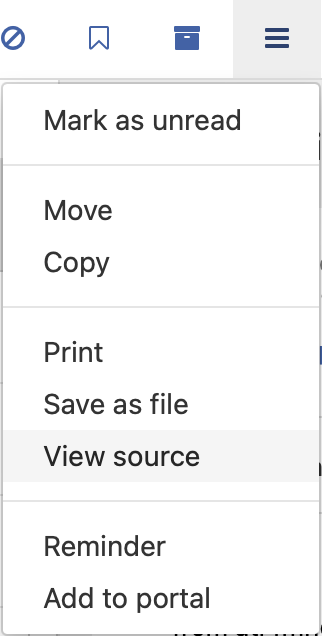
  3. Click More .

  4. Click Download message.

Important: To open the EML file that downloads, you need a desktop mail client.

Send emails as attachments

  1. Click Compose.

  2. At the bottom, click Attach files .

  3. Select the file and click Open.

  4. Click Send.


https://gsuiteupdates.googleblog.com/2019/12/forward-emails-as-attachments.html

*Please note that this feature is rolling out gradually. You’ll know this feature is available to you when you see the “Forward as attachment” option in the three-dot More menu.

Send emails as attachments in Gmail

December 9, 2019

What’s changing

You can now attach emails to other emails in Gmail without downloading them first.

To insert emails in a new thread, drag and drop them into the draft window.
Another way to insert emails in a new thread is to select the emails and then from the overflow (three-dot) menu select “Forward as attachment”.
To reply to an existing thread, you can pop-out the compose window and then drag and drop emails to it.

Why you’d use it

We’ve heard from you that there are situations where attaching emails makes more sense than forwarding separate emails, like wanting to forward multiple messages related to a single topic. With this new functionality, you can do exactly that. Sending emails as attachments allows you to write a summary email message to your recipients, and attach the set of supporting emails that recipients can directly open in their mail client.

How to get started

  • Admins: No action required.

  • End users: You'll know this feature is available to you when you see the "Forward as attachment" option in the three-dot More menu. Follow the steps in this Help Center article.

Additional details

When emails are sent as an attachment:

  • The attached email becomes a .eml file.

  • You can attach as many emails as you’d like.

  • When you click on a .eml email attachment, it will open in a new window.

Helpful links

Availability

Rollout details

https://support.apple.com/guide/icloud/reply-to-or-forward-an-email-mm6b1a1e82/icloud

iCloud Web

Reply or forward an email

  1. In Mail on iCloud.com, select the message in your message list, then click the Reply button  in the toolbar.

  2. Do one of the following:

    • Reply to the message you’re reading: Choose Reply or Reply All.

      Choosing Reply All sends your response to the sender and all of the original recipients of the message.

    • Forward a message to one or more recipients: Choose Forward, then type the email addresses.

      You can also choose Forward as Attachment to have the original message attached as an EML file to the new message.


Office365 Web

http://answers.microsoft.com/en-us/outlook_com/forum/oemail-oattach/how-do-you-forward-as-an-attachment-in-outlook

After setting up your account in Windows Live Mail, click on that email that you want to forward. In the Home tab, click on the drop down arrow below the Forward button then click Forward as attachment.

https://support.office.com/en-us/article/Attach-a-file-message-contact-or-task-to-an-email-message-477e3f61-5564-41e3-aa95-bb4737ad8cbb


Unable to forward email as attachment via an iPhone or iPad?

https://apple.stackexchange.com/questions/269494/send-an-email-as-an-attachment-from-iphone
https://discussions.apple.com/thread/7700865

Submit feedback to Apple here:

https://www.apple.com/feedback/iphone/
https://www.apple.com/feedback/ipad.html

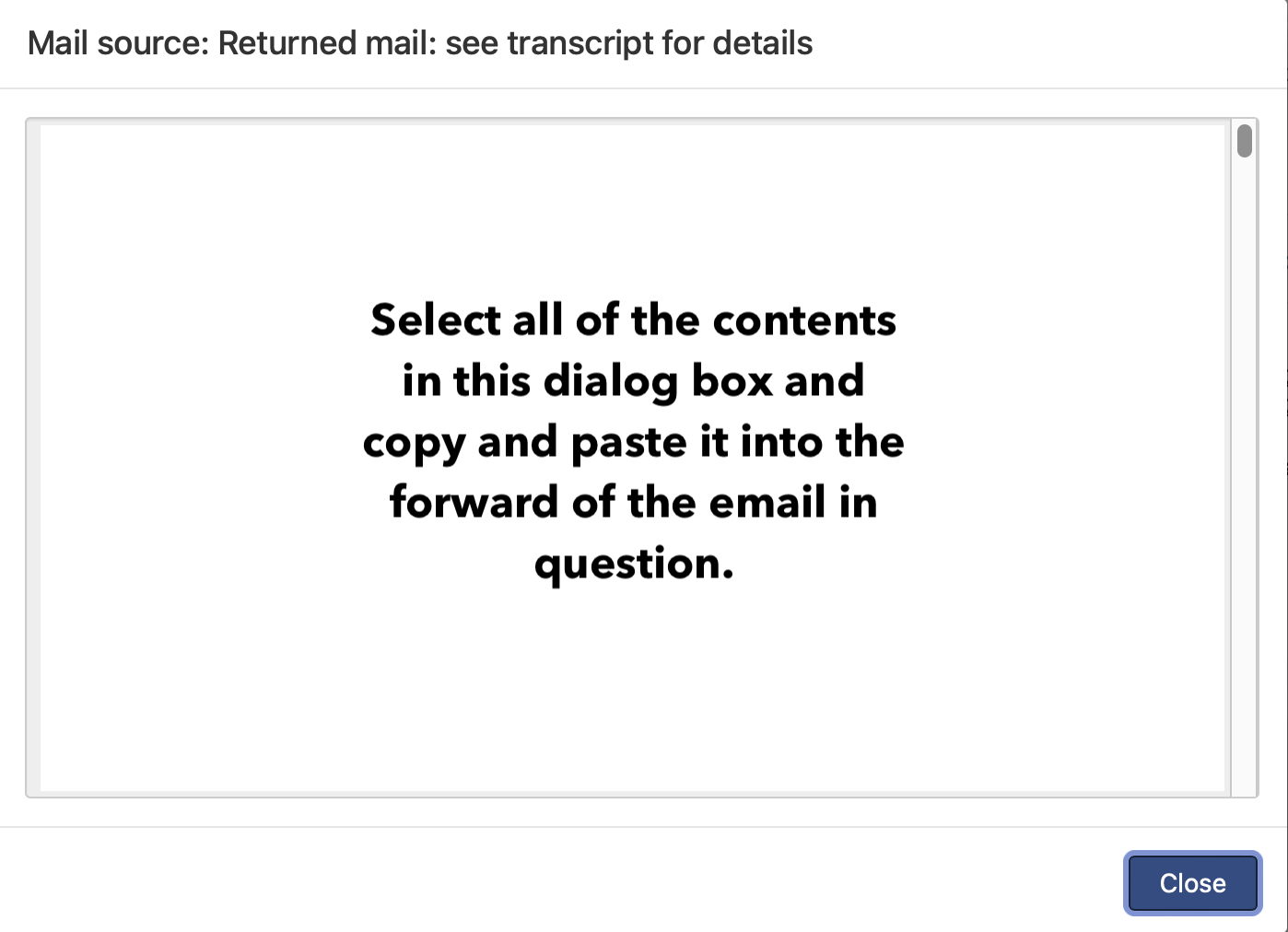
Webmail clients might not have a “forward as attachment” feature, but may have a view (raw) source option. Look for that before pressing the forward button, then select-all, and copy, then paste that into the forwarded message.

It might look like the following:

hard restart

as a last resort
long-press the power button
release and press again

2018-mac-mini-power-button-callout.jpg

If your Mac doesn't turn on or start up

If your Mac won't turn on, or it turns on but doesn't finish starting up, try these solutions.

Check for power-related issues

Press the power button on your Mac (every Mac has a power button), then check for signs of power such as these:

If your Mac has no signs of power, start by making sure that it's receiving power:

  • Make sure that your power cable is undamaged and securely plugged into your Mac and a working electrical outlet. If you're not sure about the outlet, test it with a lamp or other device.

  • If you're using a Mac notebook, make sure that you're using the correct power cable and adapter. Leave them plugged in long enough to provide a usable battery charge. Learn how to troubleshoot USB-C power adapters or MagSafe power adapters.

  • If you're using an external display, make sure that it's turned on and isn't experiencing any other display issues.

  • Make sure that your display's brightness is turned up. Mac notebook computers have a Brightness Up key on the built-in keyboard.

Then try these solutions, whether or not your Mac has signs of power:

  • Press and hold the power button for 10 seconds, then press it again.

  • Unplug all accessories from your Mac, including printers, drives, USB hubs, and mobile devices. (You could have an issue with one or more of those devices or their cables.) Once more, press and hold the power button for 10 seconds, then press it again.

  • Reset the System Management Controller (SMC).

Check for other startup issues

  • If your Mac turns on but doesn't finish starting up, you might be able take steps based on the screen you see on your display.

  • If you recently installed memory or a hard disk (or SSD), make sure that it's compatible and installed correctly. If possible, remove it and test with the original memory or disk.