How to force an app to quit on your Mac
If an app on your Mac stops responding and you can't quit the app normally, use Force Quit to close the app.
To quit (close) a Mac app normally, choose Quit from the app's menu in the menu bar, or press Command (⌘)-Q. If the app doesn't quit, follow these steps to force the app to quit.
How to force an app to quit

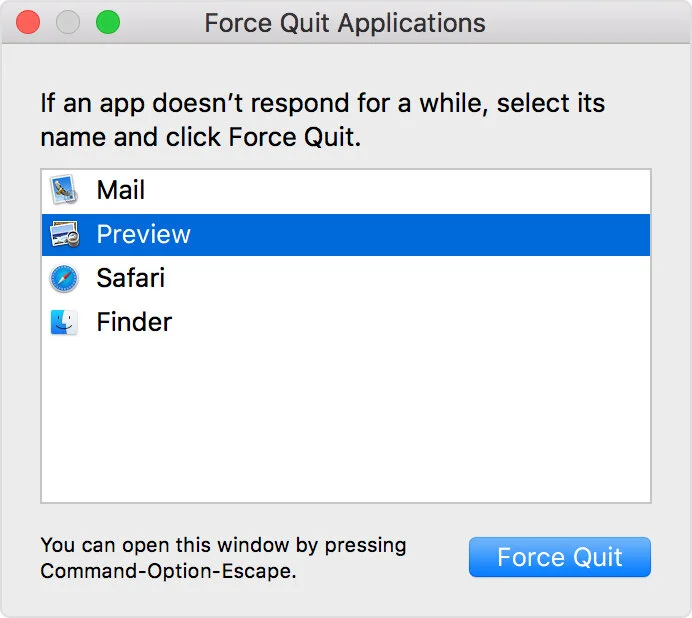
Press these three keys together: Option, Command, and Esc (Escape). This is similar to pressing Control-Alt-Delete on a PC. Or choose Force Quit from the Apple () menu in the upper-left corner of your screen.
Select the app in the Force Quit window, then click Force Quit.
Learn more
You can also force the Finder to quit, if it stops responding. Select Finder in the Force Quit window, then click Relaunch.
If none of your apps are responding, you can force your Mac to restart.
You can also force an app to close on your iPhone, iPad, or iPod touch.