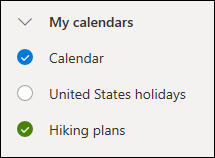
In the calendar navigation pane, select next to Your calendars.
In the Calendar name box, type the name you want to use for your new calendar, and then press Enter.
Tip: You can create a calendar in the Other calendars folder just as you did in the Your calendars folder. Choose next to Other calendars, type the name for the new calendar in the Calendar name box, and then press Enter.
Add a calendar from your organization's directory
In the calendar, go to the toolbar and select Add calendar > From directory.
In the From directory box, type the name of the calendar you want to add. Outlook on the web will automatically find matching entries from the organization's directory.
Choose the calendar you want to add, then select Open.
Add a calendar from the internet
To learn how to open a calendar from the internet, go to Import or subscribe to a calendar in Outlook on the web.
Note: You can add only one calendar at a time. Repeat the instructions for each calendar you want to add.
Create a calendar group
By default, you'll see two groups in the calendar navigation pane: Your calendars and Other calendars. You can use the context menu to create additional groups.
Before you create a calendar group, you might want to browse existing groups to make sure you're not duplicating a group name.
In the calendar navigation pane, right-click (or touch and hold if you're using a touch device), and then select New calendar group.
Type a name for your new group, and then press Enter.
Right-click an existing group to create or open a new calendar in the group, or to rename or delete the group.
Note: You can't move a calendar between groups.
Manage multiple calendars
Calendar view. You can add or remove a calendar from the calendar view by choosing . Just hover over or point to the calendar at the top of the calendar window, and the turns on or off.
More options. You can rename, delete, share, update permissions, or change the color and charm of calendars that you own. Select the calendar, and then right-click (or touch and hold if you're using a touch device) to open the menu.
If you’ve added a calendar that belongs to someone else to your calendar view, right-click to rename, remove, change the color, or change the charm of that calendar. If you remove a calendar that belongs to someone else, it won't be deleted.
View more than one calendar at a time
You can add as many calendars as you want to your account, but you can't view more than 10 at a time. If you’re using the Week, Work week, or Month view and have turned on more than one calendar, they'll be merged into a single view. The color of each calendar lets you know what items belong to which calendar. The background color of non-work hours will also change to match the active calendar.
If you’re using the Day view, in the upper-right corner of the calendar window you can choose or to decide how you'll view multiple calendars. Merge shows all your open calendars in a vertical format, and Split shows them side by side.
When you’re viewing multiple calendars, you can change which one is active by selecting it at the top of the calendar window.
Create items in different calendars