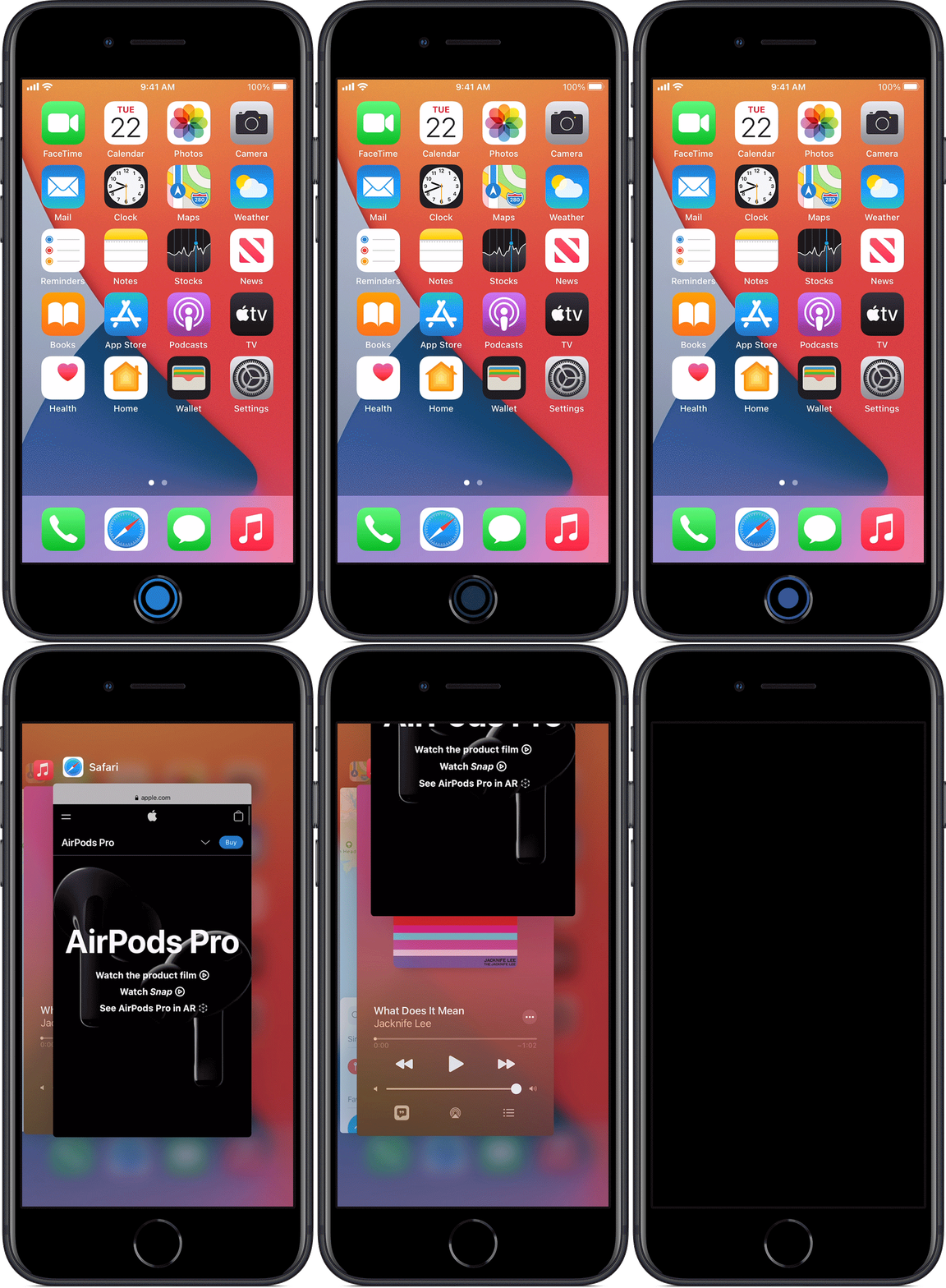
Force Quite iOS Application

How to force an app to close on your iPhone, iPad, or iPod touch

If an app won’t respond, you can force it to close.

iPhone with home button

iPhone with home button


Force close an app

  1. On an iPhone X or later, or an iPad with iOS 12 or later, or iPadOS, from the Home screen, swipe up from the bottom of the screen and pause slightly in the middle of the screen.

    On an iPhone 8 or earlier, double-click the Home button to show your most recently used apps

  2. Swipe right or left to find the app that you want to close.  

  3. Swipe up on the app's preview to close the app. 

When your recently used apps appear, the apps aren’t open, but they're in standby mode to help you navigate and multitask. You should force an app to close only if it’s unresponsive.


iPhone with FaceID

iPhone with FaceID

FinalCut YouTube Issues

If you can’t sign in and share to YouTube from Final Cut Pro X, Motion, Compressor, or iMovie

Save your movie to your Mac or another local storage device as a video file, then upload the video file to YouTube.

Because of an update to the way YouTube handles sharing, you might not be able to share directly to YouTube in iMovie for macOS 10.1.10, Final Cut Pro 10.4.5, Motion 5.4.2 and Compressor 4.4.3 or earlier. Use the steps below to share to YouTube from your app.

To find the version of your app, choose [App Name] > About [App Name]. For example, choose iMovie > About iMovie.

You can share directly to YouTube in iMovie for macOS 10.1.11Final Cut Pro 10.4.6Motion 5.4.3 and Compressor 4.4.4. To update your apps, choose Apple menu  > App Store, then click Updates in the sidebar. If an update is available, click the Update button to download and install it. Back up your files and complete any active projects before you update.

Share an iMovie for macOS project

If you're using iMovie for macOS 10.1.10 or earlier, use these steps to share a project to YouTube.

  1. Click Projects in the toolbar, then select a project.

  2. Click the Share button  in the toolbar, then choose File.

  3. In the share window, click the Quality pop-up menu, then choose Low, Medium, or High.

  4. Set any other options, click Next, then save the file to your Mac or another local storage device.

  5. Using Safari or another web browser, sign in to your YouTube account, then upload the video file.

Learn more about exporting a QuickTime file in iMovie.

Share a Final Cut Pro project

If you're using Final Cut Pro 10.4.5 or earlier, use these steps to share a project to YouTube.

  1. Select your project in the Final Cut Pro browser, click the Share button , then choose Master File. 

  2. In the Share window, click Settings.

  3. Click the Format pop-up, then choose Web Hosting.

  4. Click the "When done" pop-up menu, then choose Do Nothing.

  5. Set any other options, click Next, then save the file to your Mac or another local storage device.

  6. Using Safari or another web browser, sign in to your YouTube account, then upload the video file.

Learn more about exporting a master file from Final Cut Pro.

Share a Motion project

If you're using Motion 5.4.2 or earlier, use these steps to share a project to YouTube.

  1. With your Motion project open, click the Share button , then choose Export Movie.

  2. Click the Export pop-up menu, then choose H.264.

  3. Set any other options, click Next, then save the file to your Mac or another local storage device.

  4. Using Safari or another web browser, sign in to your YouTube account, then upload the video file.

Learn more about exporting a QuickTime movie in Motion.

Share a project from Compressor

If you're using Compressor 4.4.3 or earlier, use these steps to share a project to YouTube.

  1. In Compressor, click Add File, select the video source file you want to share, then click Add.

  2. If necessary, click the disclosure triangle next to Built-In, then choose "Publish to YouTube." 

  3. Choose a location for the transcoded file from the Location pop-up menu, then click OK.

  4. Select the source file in the batch area.

  5. Choose Window > Show Inspector.

  6. In the Action area of the inspector, choose Do Nothing from the "When done" pop-up menu.

  7. Click Start Batch.

  8. Using Safari or another web browser, sign in to your YouTube account, then upload the video file.

Learn more about how to transcode a file in Compressor.

Information about products not manufactured by Apple, or independent websites not controlled or tested by Apple, is provided without recommendation or endorsement. Apple assumes no responsibility with regard to the selection, performance, or use of third-party websites or products. Apple makes no representations regarding third-party website accuracy or reliability. Contact the vendor for additional information.

Published Date: January 06, 2020

Exporting Pages files to another format

pages-export-dialog.png

Export to Word, PDF, or another file format in Pages on Mac

To save a copy of a Pages document in another format, you export it in the new format. This is useful when you need to send the document to people who are using different software. Any changes you make to the exported document don’t affect the original.

If you’ve added marks or edits using Smart Annotation, they won’t appear in exported Word, EPUB, or Pages ’09 documents. In an exported PDF, annotations appear if they were visible when you exported.

Note: If the original file has a password, it applies to copies exported in PDF, Word, and Pages ’09 formats, but you can change or remove it.

Save a copy of a Pages document in another format

  1. Open the document, then choose File > Export To > [ file format] (from the File menu at the top of your screen).

  2. Specify export settings:

    • PDF: These files can be opened and sometimes edited with applications like Preview and Adobe Acrobat. Click the Image Quality pop-up menu, then choose an option (the higher the image quality, the larger the file size of the exported copy). If you added image, drawing, audio, or video descriptions for assistive technology (for example, VoiceOver), they are automatically exported.

    • Word: If the file needs to be compatible with an older version of Microsoft Word (1997-2004), click Advanced Options, then choose .doc from the pop-up menu.

    • EPUB: Use this format to make your document readable in an ebook reader (such as Apple Books). Enter the title and author name, then choose a cover option.

      For word-processing documents only, choose a layout type. A fixed layout preserves the layout of your document and is best for documents with multiple columns or lots of images. A reflowable layout adapts to the screen size and orientation and lets users change the font size. It’s best for documents with lots of text.

      To set optional features, click the disclosure triangle next to Advanced Options, then choose a category, specify the document’s language, set the view to one page or two pages, and choose whether or not to include the table of contents or embed fonts.

    • Plain Text (TXT): Body text is exported as unformatted text. Text boxes, shapes, images, lines, tables, and charts aren’t exported. Page layout documents can’t be exported in TXT format.

      Tip: To see if you have a word-processing or page layout document, click  in the toolbar, then click Document. If the Document Body checkbox is selected, it’s a word-processing document. If the checkbox is unselected, it’s a page layout document.

    • Rich Text Format (RTF): Body text and tables are exported as formatted (RTF) text and tables. If the document has text boxes, shapes, lines, and charts that can be exported, they’re exported as images, and the document is exported in RTFD format. Other applications may not be able to open an RTFD file. Page layout documents can’t be exported in RTF or RTFD format.

    • Pages ’09: This format can be opened by Pages 4.0 through 4.3 on a Mac.

  3. If there’s a password checkbox, do one of the following:

    • Set a password: Select the “Require password to open” checkbox, then enter a password. It applies only to the exported copy.

    • Keep the original document password: Make sure the “Require password to open” checkbox is selected.

    • Use a different password for the exported copy: Select the “Require password to open” checkbox, click Change Password, then set a new password.

    • Export the copy without a password: Deselect the “Require password to open” checkbox.

  4. Click Next, then type a name for the document (without the filename extension, such as .pdf or .epub, which is appended to the name automatically).

  5. Enter one or more tags (optional).

  6. To choose where to save the exported copy, click the Where pop-up menu, choose a location, then click Export.

Export a book or other document in EPUB format

To make your book available for purchase or download from Apple Books, you can publish it to Apple Books directly from Pages. An EPUB file is created during the process—you don’t need to export the book in EPUB format first.

How to determine iOS version of your device

ios13-iphone-xs-settings-general-about-software-version-cropped.jpg

Find the software version on your iPhone, iPad, or iPod

You can find the version of iOS, iPadOS, or iPod software installed on your iPhone, iPad, or iPod with your device or using your computer.


On an iPhone, iPad, or iPod touch

To find software version installed on your device, go to Settings > General, then tap About.


On your iPod, iPod classic, iPod nano, or iPod mini

  1. Press the Menu button multiple times until the main menu appears.

  2. Scroll to and select Settings > About.

  3. The software version of your device should appear on this screen. On iPod nano (3rd or 4th generation) and iPod classic, press the Center button twice on the About screen to see the software version.


On an iPod shuffle

Find the version with iTunes.


With your computer

You can also use your computer to find the software version of your device. Follow these steps:

  1. On a Mac with macOS Catalina 10.15, open Finder. On a Mac with macOS Mojave 10.14 or earlier, or on a PC, open iTunes.

  2. Connect your device to your computer.

  3. Locate your device on your computer. If your computer doesn't recognize your device, learn what to do.

  4. Look under the General tab or the Summary tab to see the software version.

macos-catalina-finder-iphone-encrypt-iphone-backup.jpg


Published Date: October 08, 2019