Force Restart iPhone

Force restart an iPhone with Face ID, iPhone SE (2nd generation), iPhone 8, or iPhone 8 Plus

iPhoneX-buttons-restart.png
  1. Press and quickly release the volume up button.

  2. Press and quickly release the volume down button.

  3. Press and hold the side button.

  4. When the Apple logo appears, release the button.

Note: If iPhone still doesn’t turn on, or if it gets stuck during start up, see the Apple Support article If your iPhone, iPad, or iPod touch won’t turn on or is frozen.

Force restart iPhone 7 or iPhone 7 Plus

iPhone7-buttons-restart.png
  1. Press and hold both the volume down button and the Sleep/Wake button.

  2. When the Apple logo appears, release both buttons.

Note: If iPhone still doesn’t turn on, or if it gets stuck during start up, see the Apple Support article If your iPhone, iPad, or iPod touch won’t turn on or is frozen.

Force restart iPhone 6s, iPhone 6s Plus, or iPhone SE (1st generation)

iPhone6-buttons-restart.png
  1. Press and hold both the Sleep/Wake button and the Home button.

  2. When the Apple logo appears, release both buttons.

Note: If iPhone still doesn’t turn on, or if it gets stuck during start up, see the Apple Support article If your iPhone, iPad, or iPod touch won’t turn on or is frozen.

iPhone, iPad, or iPod touch camera issues

If the camera or flash on your iPhone, iPad, or iPod touch isn't working

If your photos are blurry or the camera screen is black, you can test the camera or flash on your iPhone, iPad, or iPod touch.

If the camera isn't working

  1. Remove any case or film that might block the camera. A metallic or magnetic case or camera attachment might interfere with the camera on your device.

  2. Test the camera by trying to take a photo. 

  3. If the photo is blurry, clean the front and back camera lenses with a microfiber cloth. If you see dirt or debris inside the lens or if the camera lens appears to be misaligned or blocked, contact Apple Support for help with your iPhone, iPad, or iPod touch.

  4. Restart your iPhone, iPad, or iPod touch. 

  5. Test the camera again by taking a photo. If your device has a front and rear camera, check if one or both isn’t working. To switch cameras, tap the rotate button .

If the flash isn't working

  1. Remove any case or film that might block the flash.

  2. Test the LED flash by trying the flashlight in Control Center. On an iPhone X or later or an iPad, swipe down from the upper-right corner of the screen. On an iPhone 8 or earlier, swipe up from the bottom edge of any screen.

  3. Tap the Flashlight button .

  4. If the LED flash doesn't work as a flashlight, contact Apple Support for help with your iPhone, iPad, or iPod touch.

  5. If the flash works only sometimes, open the Camera app and tap the flash button  to choose a different setting.

Power reset HP Spectre X360

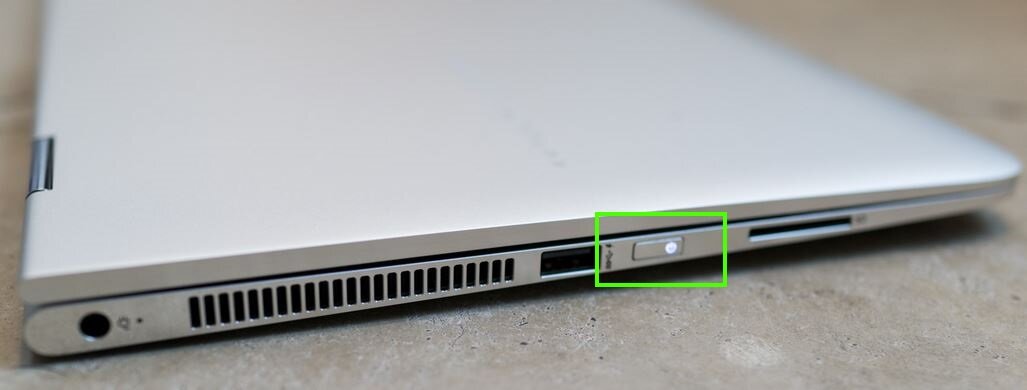
HP-Spectre-X360.jpg

There are two methods of performing a hard reset on the HP Spectre X360.

Method 1 (power button):

1. Remove the laptop from the mains and remove any peripherals. That includes any USB mice, keyboard or other devices. 
2. While powered on, hold down the power button for around 15 seconds. The laptop should power off but hold the button for the allotted time.
3. Connect the charger to the laptop and power on. The laptop should boot into the operating system as normal.

Method 2 (battery removal):

1. Make sure the laptop is turned off and not connected to the mains.
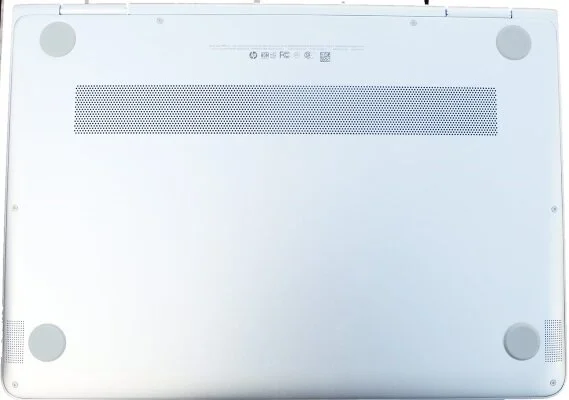
2. Place the HP Spectre X360 face down on a clean work surface.
3. Remove the eight Phillips screws holding the bottom enclosure in place. The screws are two sizes, keep them safe and where they won’t get mixed up.

HP--spectre-x360-cover.jpg

4. Disconnect the battery cable. Removing the battery is optional but not necessary for a hard reset.

HP-spectre-x360-battery-removal.jpg


5. Reconnect the battery cable and replace the enclosure.
6. Reboot the laptop. It should boot into the operating system as normal.

It is far easier to use the power button method. Try method only if you deem necessary.


Useful?