
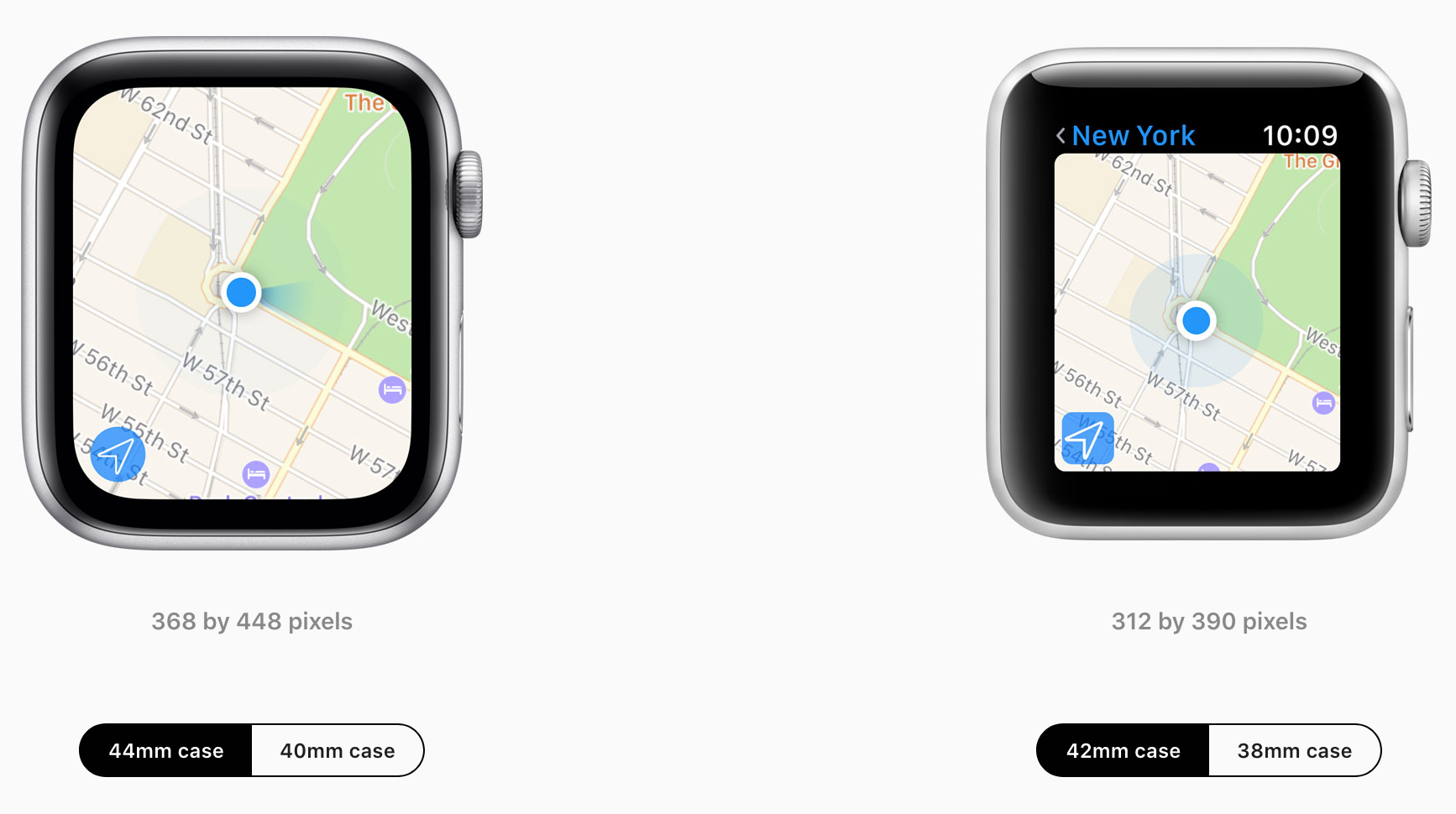
Compare AppleWatches

44mm Series4/5 vs 42mm Series3/2/1

44mm Series4/5 vs
42mm Series3/2/1

40mm Series4/5 vs 38mm Series3/2/1

40mm Series4/5 vs
38mm Series3/2/1

Apple Watch Series 5

  • 40mm or 44mm case; over 30 percent larger display8

  • Always-On Retina LTPO OLED display with Force Touch, 1000 nits

  • GPS and GPS + Cellular models

  • S5 with 64-bit dual-core processor; W3 wireless chip

  • Digital Crown with haptic feedback

  • Electrical heart sensor and second-generation optical heart sensor

  • High and low heart rate notifications, irregular heart rhythm notification, and ECG app1

  • International emergency calling,3 Emergency SOS,2and fall detection

  • Water resistant 50 meters4

  • LTE and UMTS,5 Wi-Fi, and Bluetooth 5.0

  • GPS/GNSS, compass, and barometric altimeter

  • 50 percent louder speaker; built-in mic

  • 32GB capacity

Apple Watch Series 4

  • 40mm or 44mm case; over 30 percent larger display8

  • Retina LTPO OLED display with Force Touch, 1000 nits

  • GPS and GPS + Cellular models

  • S4 with 64-bit dual-core processor; W3 wireless chip

  • Digital Crown with haptic feedback

  • Electrical heart sensor and second-generation optical heart sensor

  • High and low heart rate notifications, irregular heart rhythm notification, and ECG app1

  • Emergency SOS2 and fall detection

  • Water resistant 50 meters4

  • LTE and UMTS,5 Wi-Fi, and Bluetooth 5.0

  • GPS/GNSS and barometric altimeter

  • 50 percent louder speaker; built-in mic

  • 16GB capacity

Apple Watch Series 3

  • 38mm or 42mm case

  • Second-generation Retina OLED display with Force Touch, 1000 nits

  • GPS and GPS + Cellular models

  • S3 with dual-core processor; W2 wireless chip

  • Digital Crown

  • Optical heart sensor

  • High and low heart rate notifications and irregular heart rhythm notification

  • Emergency SOS2

  • Water resistant 50 meters4

  • LTE and UMTS,5 Wi-Fi, and Bluetooth 4.2

  • GPS/GNSS and barometric altimeter

  • Built-in speaker and mic

  • 16GB capacity (GPS + Cellular); 8GB capacity (GPS)

Apple Watch Series 2

  • 38mm or 42mm case

  • Second-generation Retina OLED display with Force Touch

  • GPS model

  • S2 with dual-core processor

  • Digital Crown

  • Optical heart sensor

  • High and low heart rate notifications and irregular heart rhythm notification

  • Water resistant 50 meters4

  • Wi-Fi and Bluetooth 4.0

  • GPS/GNSS

  • Built-in speaker and mic

  • 8GB capacity

Apple Watch Series  1

  • 38mm or 42mm case

  • Retina OLED display with Force Touch

  • S1P with dual-core processor

  • Digital Crown

  • Optical heart sensor

  • High and low heart rate notifications and irregular heart rhythm notification

  • Splash resistant9

  • Wi-Fi and Bluetooth 4.0

  • Built-in speaker and mic

  • 8GB capacity

macOS App Store Account

  1. In the App Store  on your Mac, click Sign In at the bottom-left corner.

  2. Do any of the following:

    • Create an Apple ID (if you don’t already have one): Click Create Apple ID, then follow the onscreen instructions.

    • View account settings: Click your name at the bottom-left corner, then click View Information.

      Account information includes your Apple ID, billing information, and the nickname you use when you review apps. You can also view purchases that you’ve hidden.

Outlook for Mac Support Tools

Summary

This article describes some useful tools for Microsoft Outlook for Mac.

More information

Outlook Search Repair

The Outlook Search Repair tool repairs search results within Outlook.

 Important

Due to some changes in macOS Mojave, this tool no longer works in 10.14 and higher. If you are on macOS Mojave (10.14), you can follow the steps below to reindex Spotlight for Outlook for Mac.

  1. Choose Apple menu, then System Preferences, and then Spotlight.

  2. Select the Privacy tab.

  3. In Finder:

    1. On the Go menu, select Go to Folder...

    2. Copy and paste the following location into the "Go to the folder:" dialog box and select Go:

      ~/Library/Group Containers/UBF8T346G9.Office/Outlook/Outlook 15 Profiles/

  4. Drag the "Main Profile" folder to the Privacy tab. Once added, remove the folder, and Spotlight will re-index the folder.

    You must perform this step for any additional profile folders you have.

See the following article from Apple to learn more: How to rebuild the Spotlight index on your Mac.

When to use the tool

Use this tool if search results within Outlook show nothing or return older items only. For example, if you search for an email message that you already have open and that message isn't displayed in the search results.

How to use the tool

  1. Download and open the Outlook Search Repair tool.

  2. Follow the instructions.

    Note The tool searches for duplicate installations of Outlook. If no duplicates are detected, go to step 3. If duplicates are detected, remove the duplicate Outlook installations, and then restart the system. After your system is restarted, the Outlook Search Repair tool may reopen. If it does reopen, exit and restart the tool.

  3. Select Reindex.

    Note The Outlook Search Repair tool displays a "Reindexing, please wait" message while it works. Wait for this process to finish. This may require an hour or more, depending on the size of your Outlook profile. Outlook doesn't have to be open when the repair occurs. A spotlight search will be slower and may not finish while the index is being repaired.

  4. Exit the Outlook Search Repair tool when you receive the following message after the repair is completed:

    Done! Reindexing has completed!

OutlookResetPreferences

The Outlook Reset Preferences tool resets all Outlook preferences to their default settings.

When to use the tool

Use this tool to reset any customizations that you've made to Outlook by using the Preferences option on the Outlook menu. This tool also stores the settings for the Outlook window size and position. This tool shouldn't be needed most of the time. But it can be useful.

Note The Outlook Preferences file doesn't contain all the preferences for the application. Also, resetting Outlook preferences doesn't remove email messages or account settings.

How to use the tool

  1. Download and open the Outlook Reset Preferences tool.

  2. Click the Reset Now! button. This closes Outlook if it's open, and then resets the preferences to their default settings.

  3. Exit the Outlook Reset Preferences tool.

SetDefaultMailApp

The Default Mail Application tool lets you easily make Outlook the default mail application.

When to use the tool

Use this tool if you want Outlook to open a new email message when you click a mailto: link in an email message or on a website. Selecting a mailto: link opens the default email application. Outlook isn't the default email application until you change that setting.

How to use the tool

  1. Download and open the Default Mail Application tool.

  2. In the Default Mail Application dialog box, select com.microsoft.outlook, and then click Make Default.

  3. Exit the Default Mail Application tool.

ResetRecentAddresses

The Reset Recent Addresses tool lets you reset recent addresses that Outlook stores. This tool deletes all recent addresses instead of you having to manually delete addresses one at a time.

When to use the tool

When you compose an email message and add people on the To, Cc, or Bcc line, Outlook suggests names as you type characters. The list of names that Outlook uses is a combination of stored contacts, the company directory, and recent contacts. Recent contacts have an "X" character next to each name. Without this tool, you have to click the "X" on each contact to remove that contact from the Recent Address List. The Reset Recent Addresses tool cleans out all recent addresses at the same time.

How to use the tool

  1. Download and open the ResetRecentAddresses tool.

  2. Click the Reset Now! button.

  3. Exit the Reset Outlook Recent Addresses tool.




