

Download Mac OS X 10.11 El Capitan
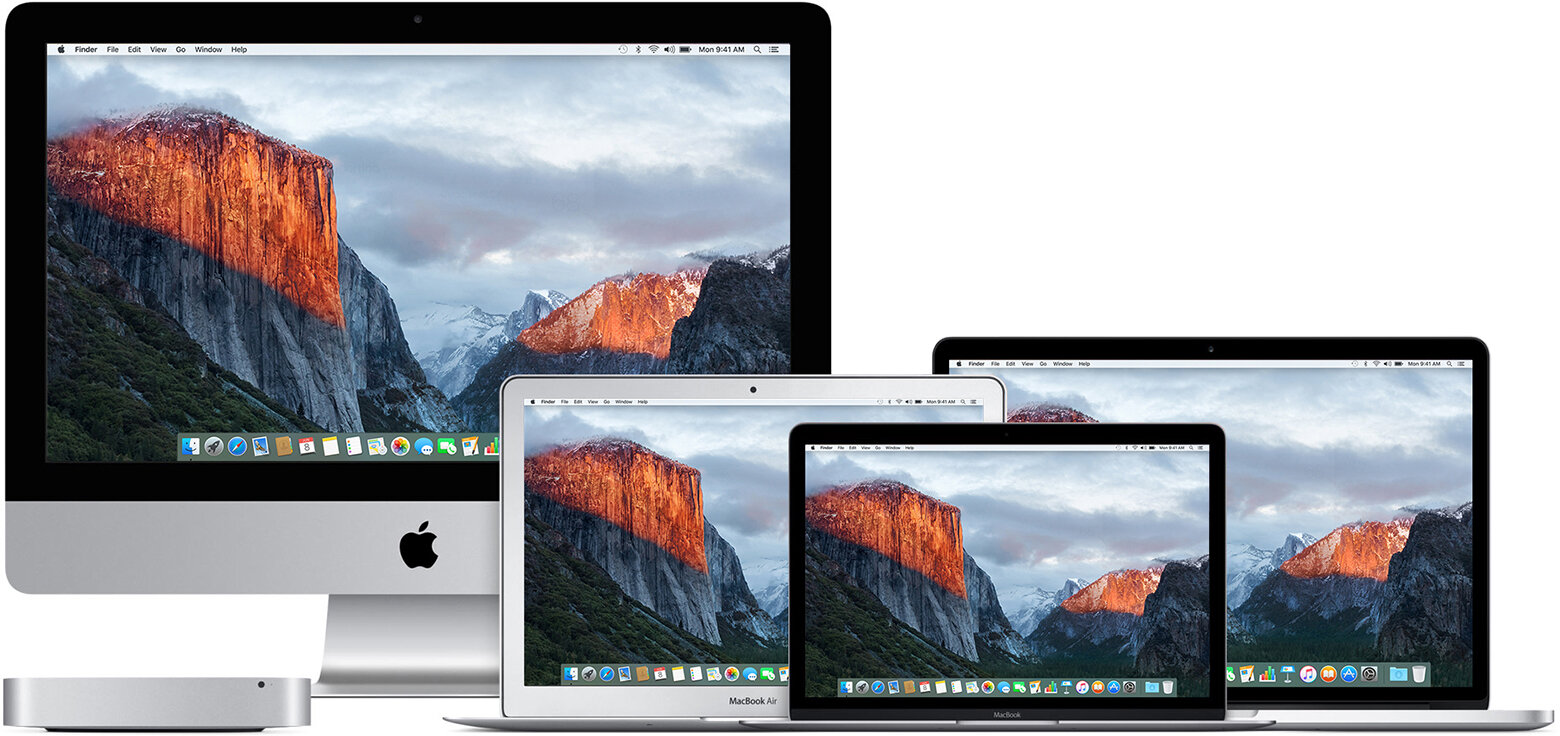
OS X El Capitan remains available for Mac computers that can't upgrade to macOS Catalina, Mojave, High Sierra, or Sierra, or that need to upgrade to El Capitan first.
Check compatibility
You can upgrade to OS X El Capitan from OS X Snow Leopard or later on any of the following Mac models. Your Mac also needs at least 2GB of memory and 8.8GB of available storage space.
MacBook introduced in 2009 or later, plus MacBook (13-inch, Aluminum, Late 2008)
MacBook Air introduced in late 2008 or later
MacBook Pro introduced in mid 2007 or later
Mac mini introduced in early 2009 or later
iMac introduced in mid 2007 or later
Mac Pro introduced in early 2008 or later
Xserve models introduced in early 2009
To find your Mac model, memory, storage space, and macOS version, choose About This Mac from the Apple menu . If your Mac isn't compatible with OS X El Capitan, the installer will let you know.
Make a backup
Before installing any upgrade, it’s a good idea to back up your Mac. Time Machine makes it simple, and other backup methods are also available. Learn how to back up your Mac.
Get connected
It takes time to download and install OS X, so make sure that you have a reliable Internet connection. If you're using a Mac notebook computer, plug it into AC power.
Download OS X El Capitan
For the strongest security and latest features, find out whether you can upgrade to macOS Catalina, the latest version of macOS.
If you still need OS X El Capitan, use this link: Download OS X El Capitan. A file named InstallMacOSX.dmg will download to your Mac.
Install the macOS installer
Double-click the downloaded file to open a window showing its contents. Then double-click the file within, named InstallMacOSX.pkg.
Follow the onscreen instructions, which will guide you through the steps necessary to install.
Begin installation
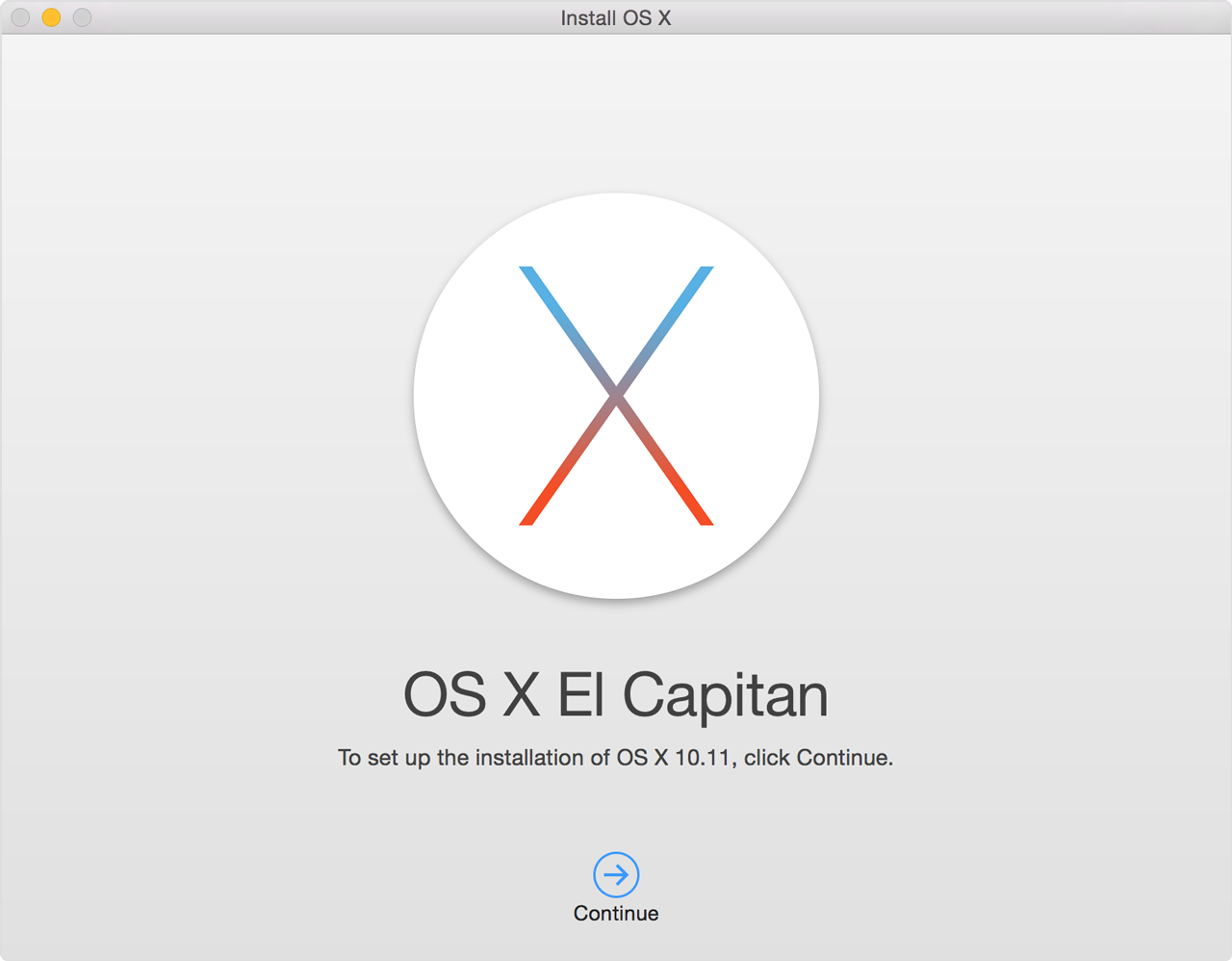
After installation of the installer is complete, open the Applications folder on your Mac, then double-click the file named Install OS X El Capitan.
Click Continue and follow the onscreen instructions. You might find it easiest to begin installation in the evening so that it can complete overnight, if needed.
Allow installation to complete
Please allow installation to complete without putting your Mac to sleep or closing its lid. Your Mac might restart, show a progress bar, or show a blank screen several times as it installs both OS X and related updates to your Mac firmware.
Learn more
OS X El Capitan won't install on top of a later version of macOS, but you can erase your disk first or install on another disk.
Erase a volume using Disk Utility on Mac
You can erase and reformat disks or volumes. Erasing a disk deletes everything on it. Erasing a volume deletes all the files on that volume, but does not affect other volumes.
If you have any files you want to save, copy them to another disk or volume before you erase the disk or volume they are on.
Open the Disk Utility app on your Mac using one of the following methods, depending on the type of disk or volume you want to erase:
If you want to erase your startup disk or startup volume: Start up from macOS Recovery, then choose Disk Utility from the macOS Utilities window.
If you want to erase any other type of disk or volume: Double-click Disk Utility in the /Applications/Utilities folder.
Choose View > Show All Devices.
Select the disk or volume in the sidebar, then click the Erase button .
If you’re erasing a disk, click the Scheme pop-up menu, then choose a partition scheme.
Click the Format pop-up menu, then choose a choose a file system format.
Enter a name for the disk or volume.
(Optional) If available, click Security Options, use the slider to choose how many times to write over the erased data, then click OK.
Secure erase options are available only for some types of storage devices. If the Security Options button is not available, Disk Utility cannot perform a secure erase on the storage device.
Writing over the data three times meets the U.S. Department of Energy standard for securely erasing magnetic media. Writing over the data seven times meets the U.S. Department of Defense 5220-22-M standard.
Click Erase, then click Done.
Note: With a solid-state drive (SSD), secure erase options are not available in Disk Utility. For more security, consider turning on FileVault encryption when you start using your SSD drive.
Restore your macOS and files from a backup
Restore both macOS and your files
These steps erase your hard disk, then use your backup to restore both your files and the specific version of macOS you were using when you created the backup.
Make sure that your Time Machine backup disk is connected and turned on.
If your backup disk isn't available, keep going: You might be able to restore from a local snapshot on your startup disk.Turn on your Mac, then immediately press and hold Command (⌘)-R to start up from macOS Recovery. Release the keys when you see the Apple logo or spinning globe.
When you see the macOS Utilities window, choose the option to restore from a Time Machine Backup.
Click Continue until you're asked to select a restore source, then select your Time Machine backup disk. Or select your startup disk (Macintosh HD), which might have a local snapshot you can restore from.
Click Continue. If your disk is encrypted, you're asked to unlock the disk: Enter the administrator password you used when setting up Time Machine, then click Continue again.
Select a backup, if available, then click Continue.
Select a destination disk, which will receive the contents of your backup. If restoring from a local snapshot, you aren't asked to select a destination.
Click Restore or Continue. If your Mac has FileVault turned on, you're asked to enter your administrator password to unlock the disk.
When done, restart your Mac.






