
remove FaceTime calls

IMG_8087.jpeg

Delete the call history in FaceTime on Mac

You can clear a specific call or all calls from the list of calls you made or received.

  1. In the FaceTime app  on your Mac, click All or Missed.

  2. Do one of the following:

    • Remove a specific call: Control-click a call, then choose Remove from Recents. You can also swipe left on the call (in the list of calls) using two fingers on the trackpad (use one finger on a Magic Mouse), then click the Delete button

    • Remove all recent calls: Choose FaceTime > Remove All Recents.

      Important: Recent calls are cleared from both the All and Missed panes.
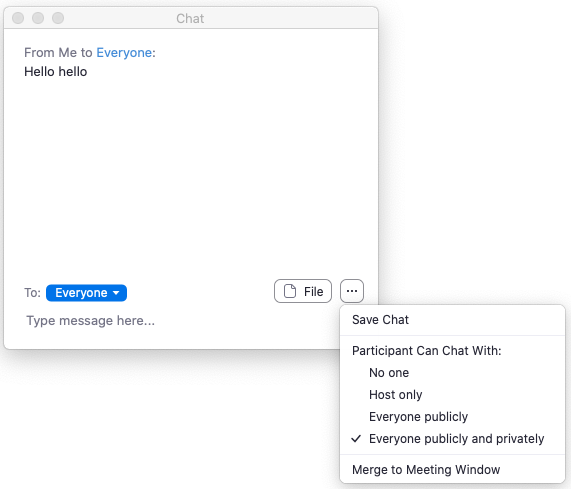
Zoom Chat enable/disable

For meetings, the host can allow attendees to chat with everyone or with the host only. 

For meetings, the host can allow attendees to chat with everyone or with the host only. 

Disabling in-meeting chat

You can turn chat for all of your meetings and webinars, if you do not want to use the chat feature in your meetings and webinars. This will prevent the host, co-hosts, and participants from chatting for any meetings you host. The Chat option will no longer appear in the Meeting Controls.

You can disable the Private Chat, which will prevent participants from sending messages to individuals instead of the entire group.

  1. Sign in to the Zoom web portal.

  2. In the navigation menu, click Settings.

  3. Navigate to Chat option under In Meeting (Basic).

  4. Click the Chat and Private Chat toggles to disable in-meeting chat.

  5. Click Save Changes.




