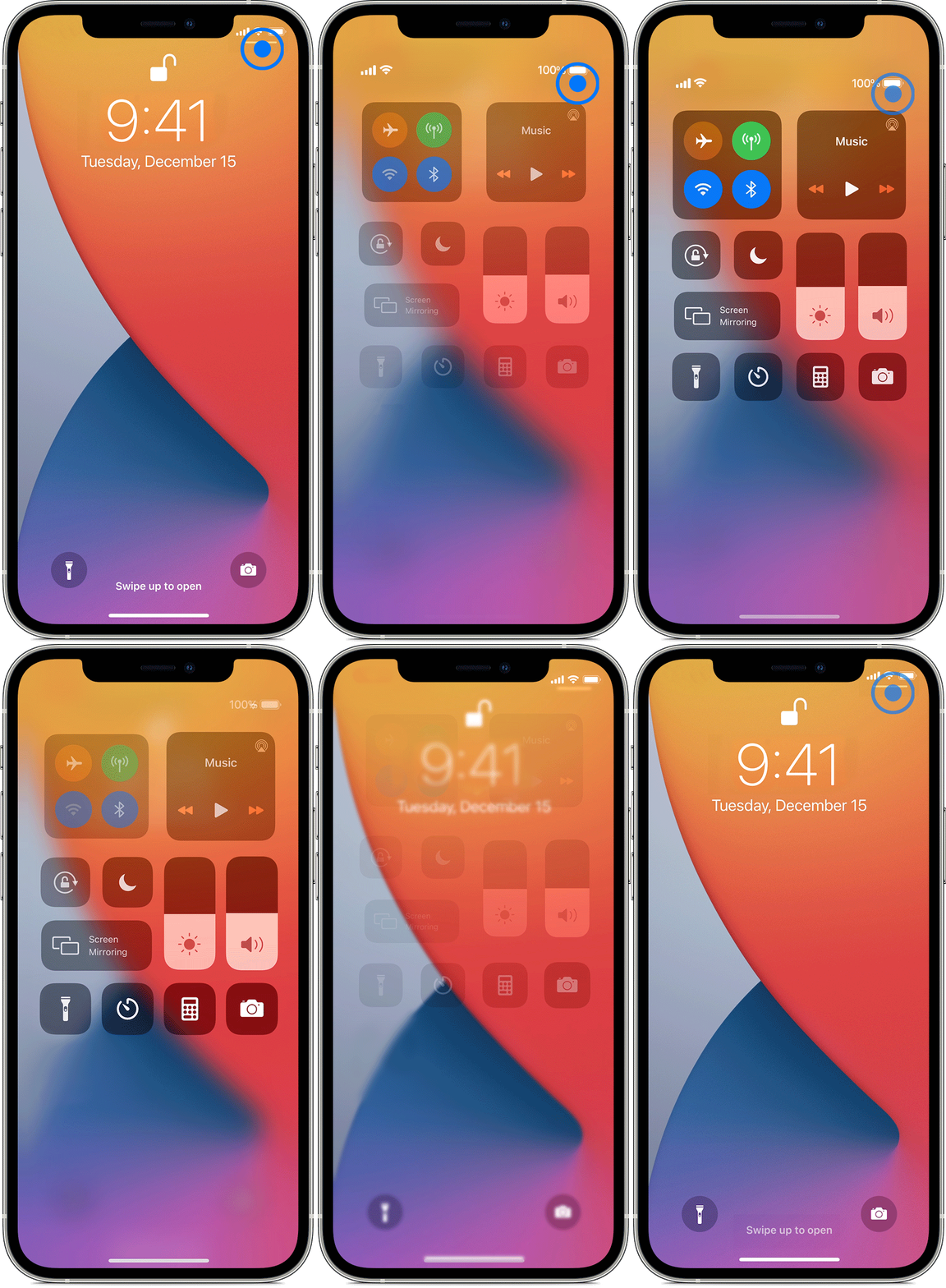
Access Control Center on your iPhone and iPod touch

ios14-iphone12-pro-open-control-center-animation.gif

iPhone X and later

  • To open Control Center, swipe down from the top-right corner of your screen.

  • To close Control Center, swipe up from the bottom of the screen or tap the screen.

If you swipe too close to the top-center of your screen, you might open Notification Center instead of Control Center.
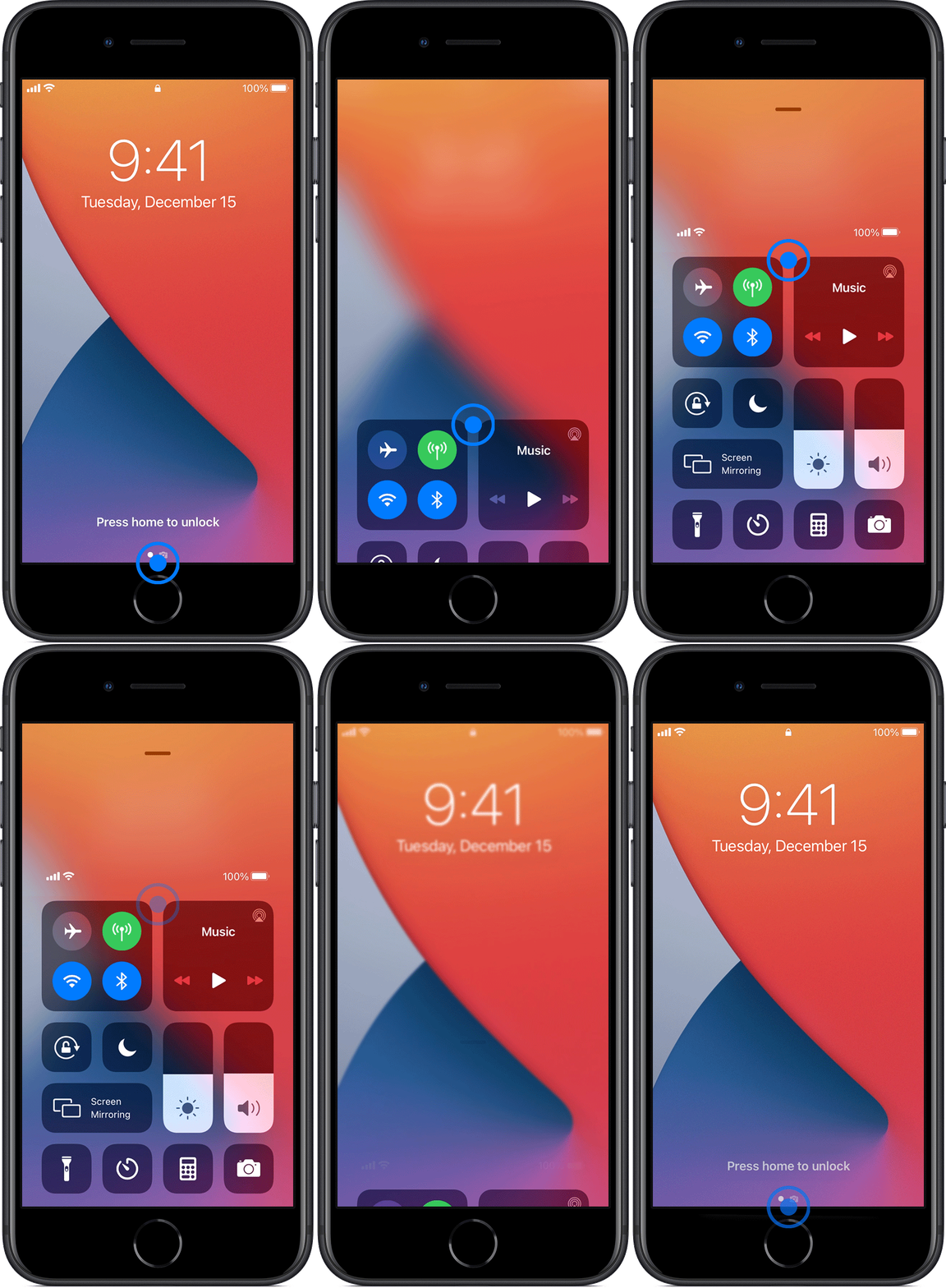
ios14-iphone-se-control-center-animation.gif

iPhone SE, iPhone 8 and earlier, and iPod touch 

  • To open Control Center, swipe up from the bottom edge of any screen.

  • To close Control Center, tap the top of the screen or press the Home button.

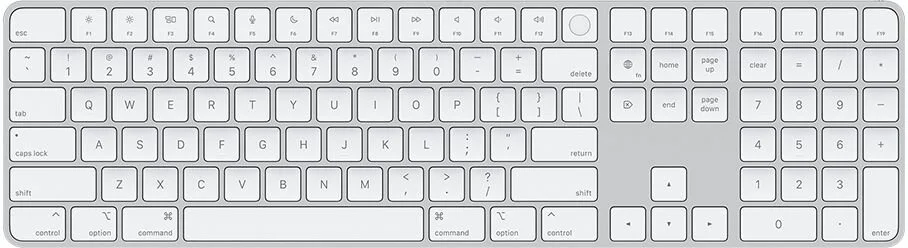
iMac 24" keyboard options

Magic Keyboard with Touch ID

magic-keyboard-silver-touchid-overlay-202104.jpeg

For the first time, Magic Keyboard is available with Touch ID, providing fast, easy authentication for secure logins and purchases. Your color-matched Magic Keyboard with Touch ID combines a sleek design with a built-in rechargeable battery and enhanced key features. With a stable scissor mechanism beneath each key, as well as optimized key travel and a low profile, Magic Keyboard provides a remarkably comfortable and precise typing experience

Magic Keyboard with Touch ID and Numeric Keypad

magic-keyboard-silver-numerical-overlay-202104.jpeg

Magic Keyboard with Touch ID and Numeric Keypad in your chosen iMac color has an extended layout with document navigation controls for quick scrolling, full-size arrow keys, and a numeric keypad. Like Magic Keyboard with Touch ID, it provides fast, easy authentication for secure logins and purchases. And it’s designed with a low profile for control and comfort.

Force restart iPhone

Force restart iPhone X, iPhone XS, iPhone XR, iPhone 11, or iPhone 12...

Force-restartiPhoneX-iPhoneXS-iPhoneXR-iPhone-11-iPhone12.png

Press and quickly release the volume up button, press and quickly release the volume down button, then press and hold the side button. When the Apple logo appears, release the button.

Force restart iPhone X, iPhone XS, iPhone XR, iPhone 11, or iPhone 12

Force-restart-iPhone8-iPhoneSE-2nd-generation.png

Press and quickly release the volume up button, press and quickly release the volume down button, then press and hold the side button. When the Apple logo appears, release the button.

Force restart iPhone 7

Force-restart-iPhone7 .png

Press and hold both the volume down button and the Sleep/Wake button at the same time. When the Apple logo appears, release both buttons.

Force restart iPhone 6s or iPhone SE (1st generation)

Force-restart-iPhone6s-iPhoneS-1st-geneneration.png

Press and hold both the Sleep/Wake button and the Home button at the same time. When the Apple logo appears, release both buttons.