
Adjust AppleTV Remote Settings

Adjust remote settings on Apple TV 4K
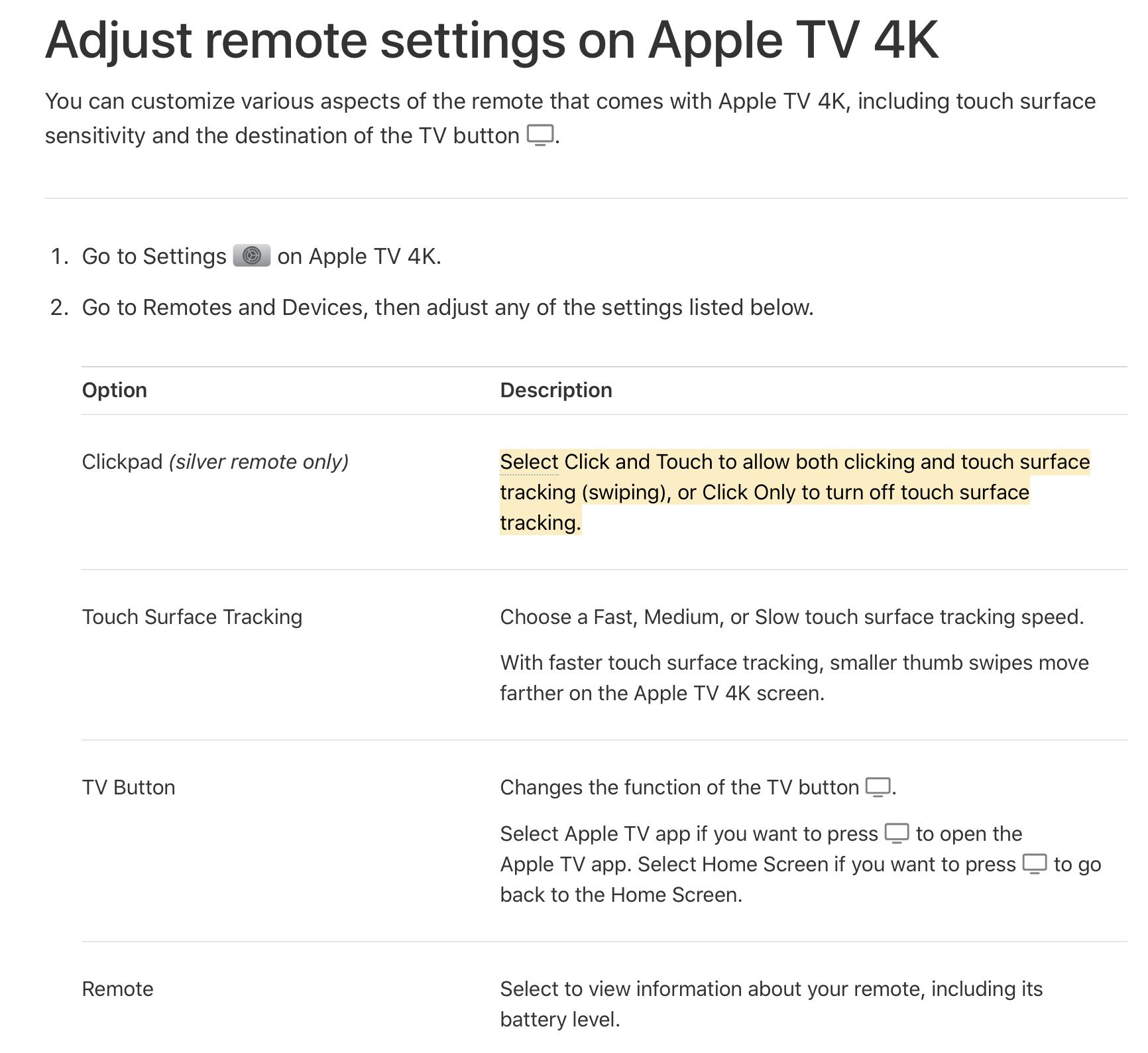
You can customize various aspects of the remote that comes with Apple TV 4K, including touch surface sensitivity and the destination of the TV button .

  1. Go to Settings on Apple TV 4K.

  2. Go to Remotes and Devices, then adjust any of the settings listed below.

    Clickpad (silver remote only)

    Select Click and Touch to allow both clicking and touch surface tracking (swiping), or Click Only to turn off touch surface tracking.

    Touch Surface Tracking

    Choose a Fast, Medium, or Slow touch surface tracking speed.

    With faster touch surface tracking, smaller thumb swipes move farther on the Apple TV 4K screen.

    TV Button

    Changes the function of the TV button .

    Select Apple TV app if you want to press to open the Apple TV app. Select Home Screen if you want to press to go back to the Home Screen.

    Remote

    Select to view information about your remote, including its battery level.


  3. https://support.apple.com/guide/tv/adjust-remote-settings-atvb267f9798/tvos
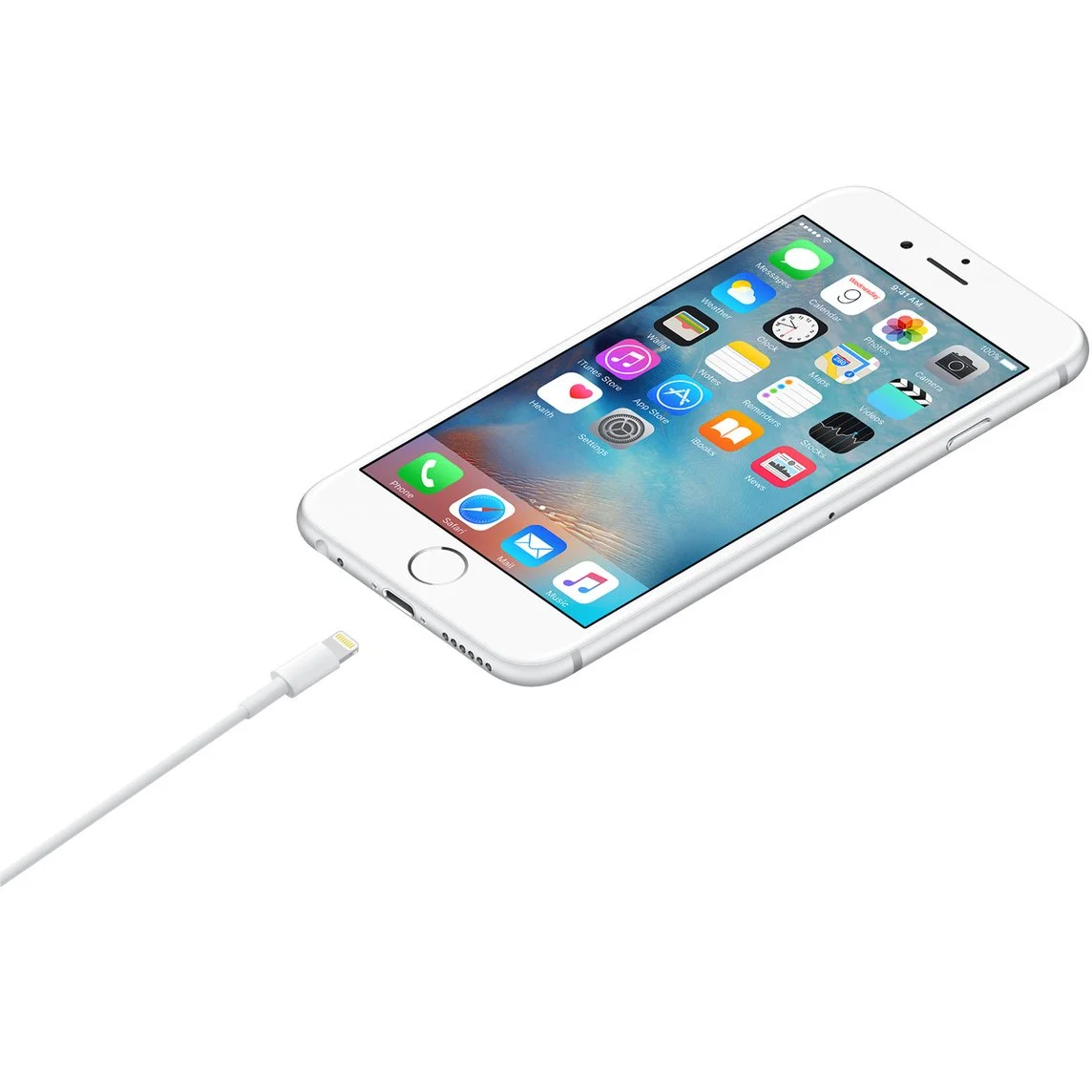
USB tethering of iPhone (alternative to WiFi hotspotting)

Connect to a Personal Hotspot with a USB cable

You can connect a Mac or Windows device to the Personal Hotspot on your iPhone using the USB cable that came with your iPhone (or another cable that matches the ports on your iPhone and other device).

Note: If you see an alert on your iPhone that says Trust This Computer? tap Trust. You may be asked to enter your device passcode to proceed. If you see an alert on your Mac that says “Allow accessory to connect?” click Allow.

As soon as it’s connected by a cable, your Mac or Windows device is able to use the cellular connection on your iPhone.


Connect iPhone and your computer with a cable
https://support.apple.com/guide/iphone/connect-iphone-and-your-computer-with-a-cable-iph42d9b3178/17.0/ios/17.0


How to set up a Personal Hotspot on your iPhone or iPad
https://support.apple.com/en-us/111785

Make a call with Wi-Fi Calling

With Wi-Fi Calling, you can make or receive a phone call if you have a Wi-Fi connection in an area with little or no cellular coverage. Learn how to make a voice call using Wi-Fi Calling.

Place Wi-Fi calls from your iPhone

To turn on Wi-Fi calling, go to Settings > Cellular > Wi-Fi Calling. If your iPhone has multiple SIMs, choose a line (below SIMs). Tap Wi-Fi calling and turn it on. You might need to enter or confirm your address for emergency services.

If Wi-Fi Calling is available, you’ll see "Wi-Fi" in the status bar while viewing Control Center. Then your calls will use Wi-Fi Calling.

When cellular service is available, your iPhone uses it for emergency calls. If you turn on Wi-Fi Calling and cellular service isn't available, emergency calls might use Wi-Fi calling. Your device's location may be used to aid response efforts when you place an emergen




