
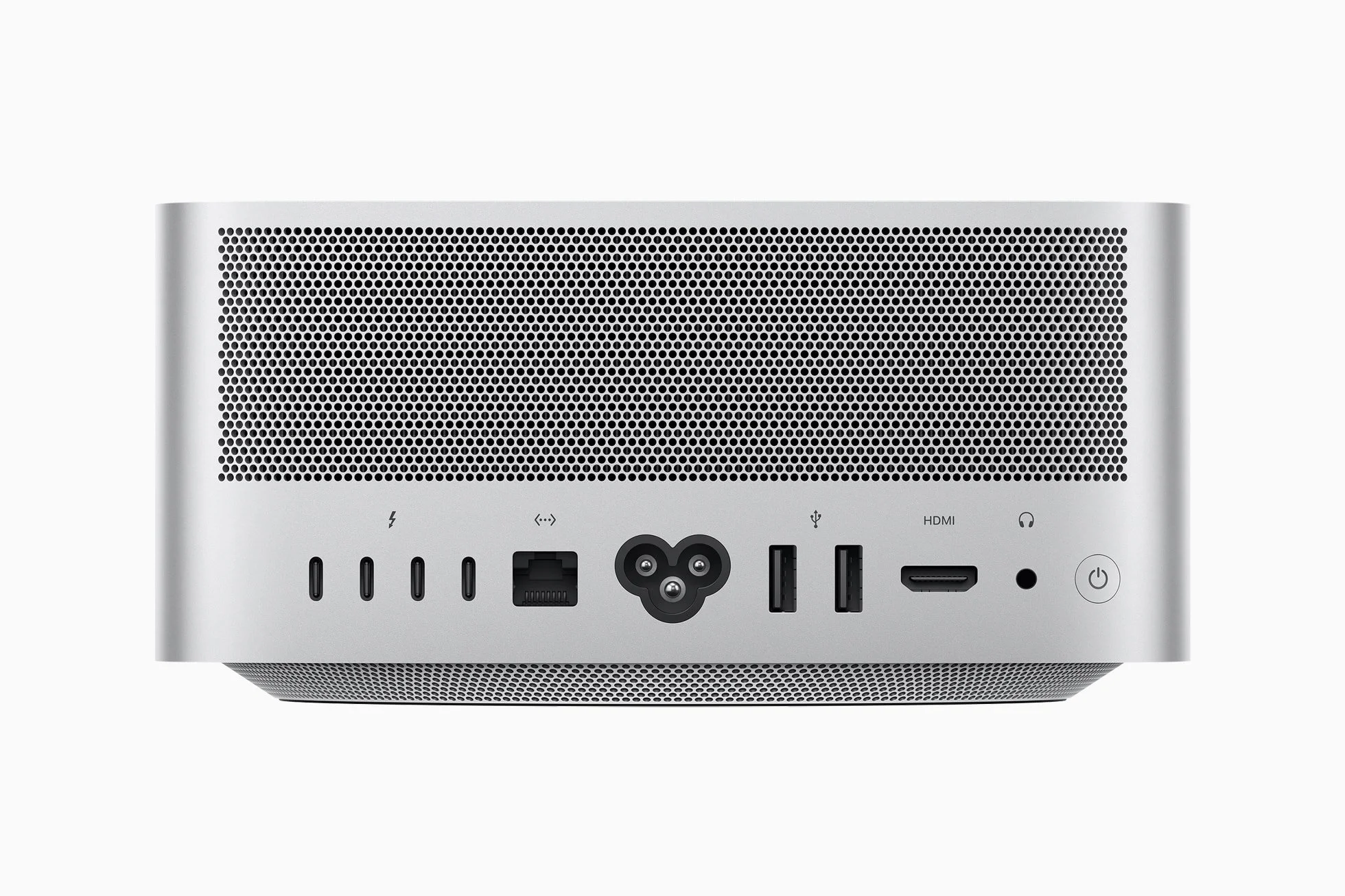
Official Apple Cleaning Instructions (Direct from Support)
From Apple's "How to clean your Apple products" and the Mac Studio Important Handling Information:
Shut down your Mac Studio completely.
Unplug the power cord and all other cables/devices.
Use a damp, soft, lint-free cloth to wipe the exterior surfaces.
Avoid getting any moisture in the openings (vents).
Do not spray liquids directly on the computer.
Do not use aerosol sprays, solvents, abrasives, cleaners containing hydrogen peroxide, or alcohol-based cleaners on the main body (unless for specific approved surfaces like certain wipes on hard nonporous areas).
Apple does not publish a dedicated internal dust removal procedure for the Mac Studio because the cooling system (intake from bottom, exhaust from rear/sides) is intended to be maintained externally.
Community-Approved & Commonly Accepted Self-Service Method (Widely Endorsed in Apple Discussions)
The most frequently recommended and safe user action, echoed across Apple Support Communities:
After powering down and unplugging everything, gently vacuum the intake vents (bottom) and exhaust vents (rear/sides) using a household vacuum with a soft brush or crevice tool attachment.
Hold the nozzle slightly away from the vents and move it around to draw dust outward.
You may use a clean, soft anti-static brush (e.g., camera lens brush) to lightly agitate surface dust while vacuuming.
Key warnings from Apple-aligned advice:
Never blow compressed air into the vents while the unit is assembled — this can drive dust deeper into the heatsink and internal components rather than removing it.
Do not run the fans at high speed as a cleaning method (as discussed previously — it risks pulling in more dust or redistributing particles internally).
Avoid any disassembly (removing the bottom rubber foot/ring, etc.) as this is not user-serviceable and may affect seals or void aspects of warranty if damage occurs.




