iOS add email account

ios-add-email-account.jpg

Set up your email account automatically

If you use an email provider like iCloud, Google, or Yahoo, Mail can automatically set up your email account with just your email address and password. Here's how:

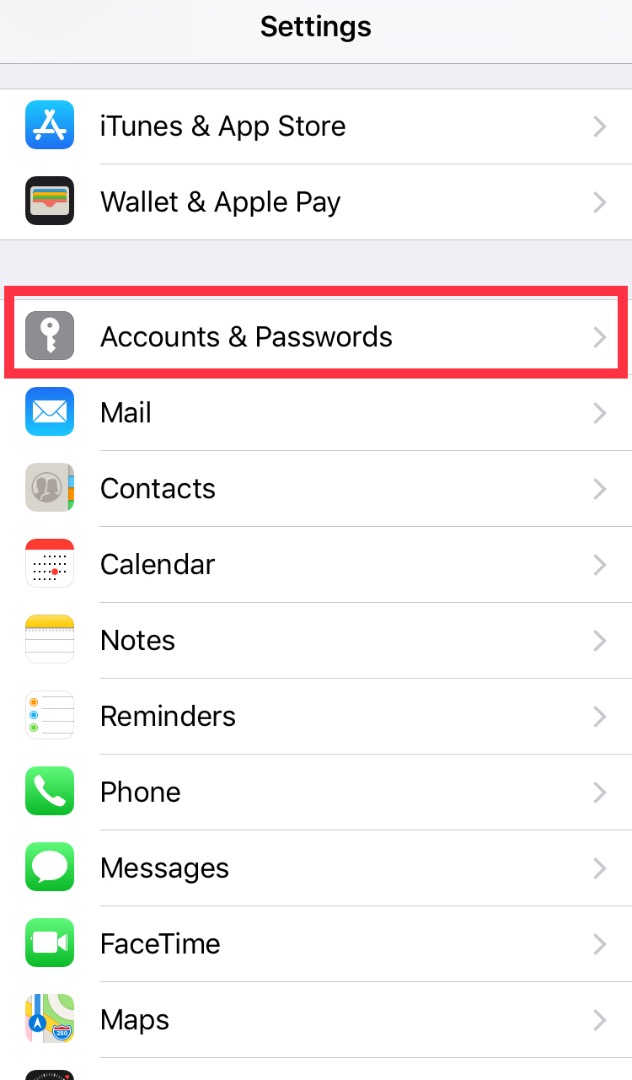
  1. Go to Settings > Passwords & Accounts, then tap Add Account.

  2. Tap your email provider.

  3. Enter your email address and password.

  4. Tap Next and wait for Mail to verify your account.

  5. Choose information from your email account, like Contacts or Calendars, that you want to see on your device.

  6. Tap Save.

If you don't see your email provider, tap Other to add your account manually.

Set up your email account manually

If you need to set up your email account manually, make sure that you know the email settings for your account. If you don’t know them, you can look them up or contact your email provider. Then follow these steps:

  1. Go to Settings > Passwords & Accounts, then tap Add Account.

  2. Tap Other, then tap Add Mail Account.

  3. Enter your name, email address, password, and a description for your account.

  4. Tap Next. Mail will try to find the email settings and finish your account setup. If Mail finds your email settings, tap Done to complete your account setup.

iOS remove email account

ios-settings-accounts-passwords.jpg

Remove your email account and set it up again

  1. On your computer, sign in to your email provider’s website. Make sure that all of your email is there or make sure that your email is saved somewhere other than your iOS device.

  2. On your iOS device, go to Settings > Passwords & Accounts.

  3. Tap the email account that you want to remove.

  4. Tap Delete Account.

  5. Add your account again.

Unlock Apple Watch

Unlock Apple Watch

Unlock Apple Watch with iPhone

You can unlock Apple Watch whenever you unlock your iPhone.

  1. Open the Settings app  on your Apple Watch.

  2. Tap Passcode, then turn on Unlock with iPhone.

You can also open the Apple Watch app on your iPhone, tap My Watch, tap Passcode, then turn on Unlock with iPhone.

Your iPhone must be within normal Bluetooth range (about 33 feet or 10 meters) of your Apple Watch to unlock it.

Tip: Your Apple Watch passcode can be different from your iPhone passcode—in fact, it’s better to use different passcodes.

Change your passcode

You can change the passcode you created when you first set up your Apple Watch by following these steps:

  1. Open the Settings app  on your Apple Watch.

  2. Tap Passcode, then tap Change Passcode and follow the onscreen prompts.

You can also open the Apple Watch app on your iPhone, tap My Watch, tap Passcode, then tap Change Passcode and follow the onscreen prompts.

Tip: To use a passcode longer than four digits, open the Apple Watch app on your iPhone, tap My Watch, tap Passcode, then turn off Simple Passcode.

Turn off the passcode

  1. Open the Settings app  on your Apple Watch.

  2. Tap Passcode, then tap Turn Passcode Off.

You can also open the Apple Watch app on your iPhone, tap My Watch, tap Passcode, then tap Turn Passcode Off.

Note: If you disable your passcode, you can’t use Apple Pay on your Apple Watch.

Lock automatically

Turn on wrist detection to lock your watch automatically when you’re not wearing it.

  1. Open the Apple Watch app on your iPhone.

  2. Tap My Watch, tap Passcode, then turn on Wrist Detection.

If you turn off Wrist Detection, you can’t use Apple Pay on your Apple Watch (1st generation) and Apple Watch Series 4 won’t automatically make an emergency call after you have a hard impact fall.

Lock manually

Touch and hold the bottom of the screen, swipe up to open Control Center, then tap .

Note: To manually lock your Apple Watch, you need to have wrist detection turned off. (Open the Apple Watch app on your iPhone, tap My Watch, tap Passcode, then turn off Wrist Detection.)

You need to enter your passcode the next time you try to use your Apple Watch.

You can also lock your screen to avoid accidental taps during a workout. While using the Workout app  on your Apple Watch, just swipe right, then tap Lock. When you start a swimming workout with Apple Watch Series 2 and later, your Apple Watch automatically locks the screen with Water Lock.

watch-passcode.png

If you forget your password

If you forget your password, you must erase your Apple Watch. You can do so in these ways:

  • Unpair your Apple Watch from your iPhone to erase your Apple Watch settings and passcode, then pair again.

  • Reset your Apple Watch and pair it again with your iPhone.

For more information, see If you forget your Apple Watch passcode.

Erase Apple Watch after 10 unlock attempts

To protect your information if your watch is lost or stolen, you can set Apple Watch to erase its data after 10 attempts to unlock it using the wrong password.

  1. Open the Apple Watch app on your iPhone.

  2. Tap My Watch, tap Passcode, then turn on Erase Data.