

iPad Comparisons
| Model | Year | Lbs | T” | W” | H” | Resolution | ppi | screen | CPU | Notes |
|---|---|---|---|---|---|---|---|---|---|---|
| iPad Pro 12.9" | 2018 | 1.39 | 0.23 | 9.8 | 11.04 | 2732x2048 | 264 | 80.3 sq-in | A12X | P2 |
| iPad Pro 11" | 2018 | 1.03 | 0.23 | 7.02 | 9.74 | 2388x1668 | 264 | 57.2 sq-in | A12X | P2 |
| iPad Air 10.5" | 2019 | 1.02 | 0.24 | 6.80 | 9.80 | 2224x1668 | 264 | 53.2 sq-in | A12 | P1 |
| iPad 10.2" | 2019 | 1.09 | 0.29 | 6.80 | 9.80 | 2160x1620 | 264 | 50.2 sq-in | A10 | P1 |
| iPad mini 7.9" | 2019 | 0.68 | 0.24 | 5.30 | 8.00 | 2048x1536 | 326 | 29.6 sq-in | A12 | P1 |
P1 = Supports 1st Generation Pencil
P2 = Supports 2nd Generation Pencil
| Model | min | Min $ | max | Max $ | Cellular | - | - | - | - | - |
|---|---|---|---|---|---|---|---|---|---|---|
| iPad Pro 12.9" | 64GB | $999 | 1TB | $1549 | $150 | - | - | - | - | - |
| iPad Pro 11" | 64GB | $799 | 1TB | $1349 | $150 | - | - | - | - | - |
| iPad Air 10.5" | 64GB | $649 | 256GB | $649 | $130 | - | - | - | - | - |
| iPad 10.2" | 32GB | $329 | 128GB | $429 | $130 | - | - | - | - | - |
| iPad mini 7.9" | 64GB | $399 | 256GB | $549 | $130 | - | - | - | - | - |
download High Sierra
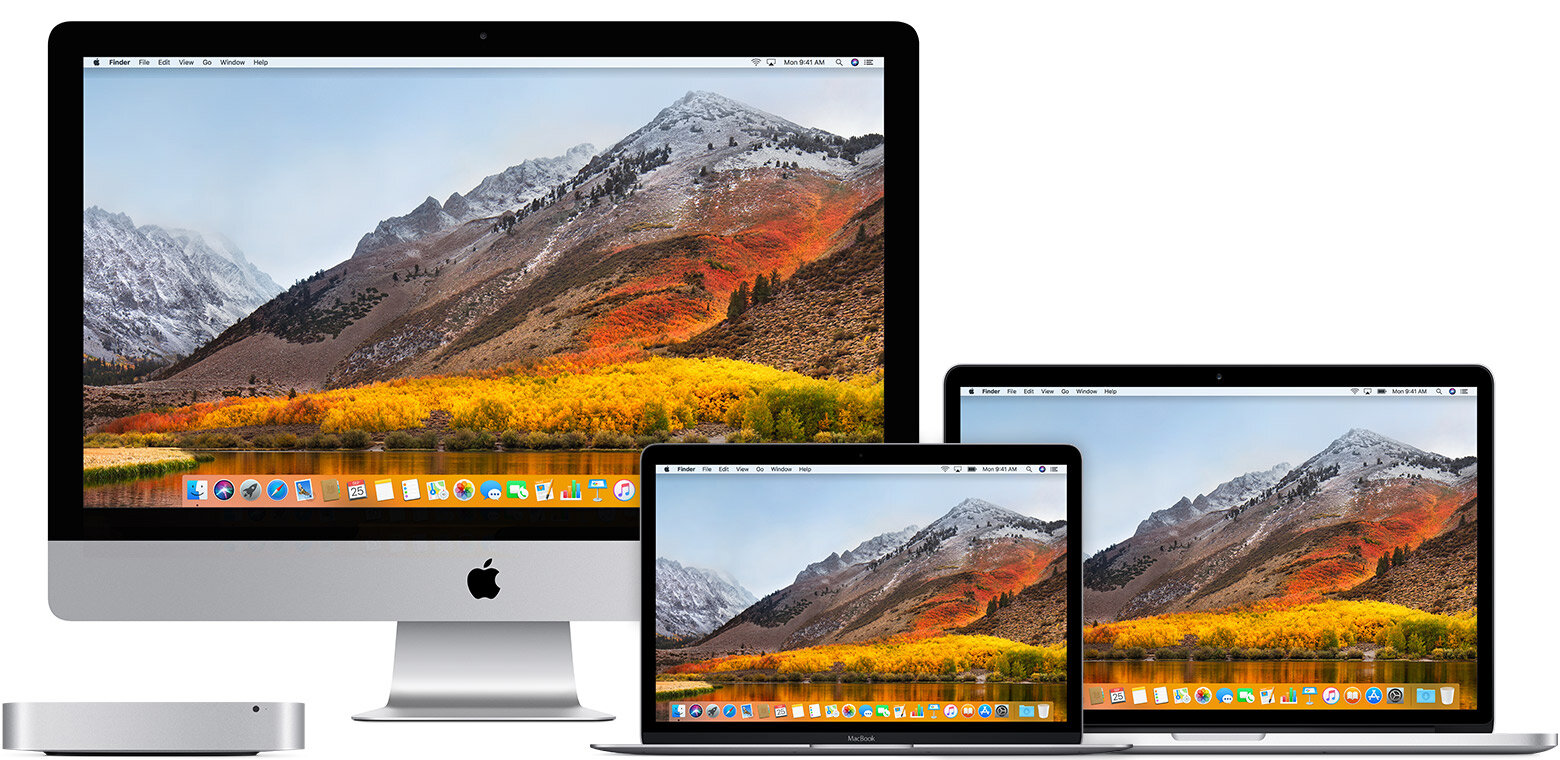
If you still need macOS High Sierra, use this App Store link: Get macOS High Sierra.
Buy more iCloud storage
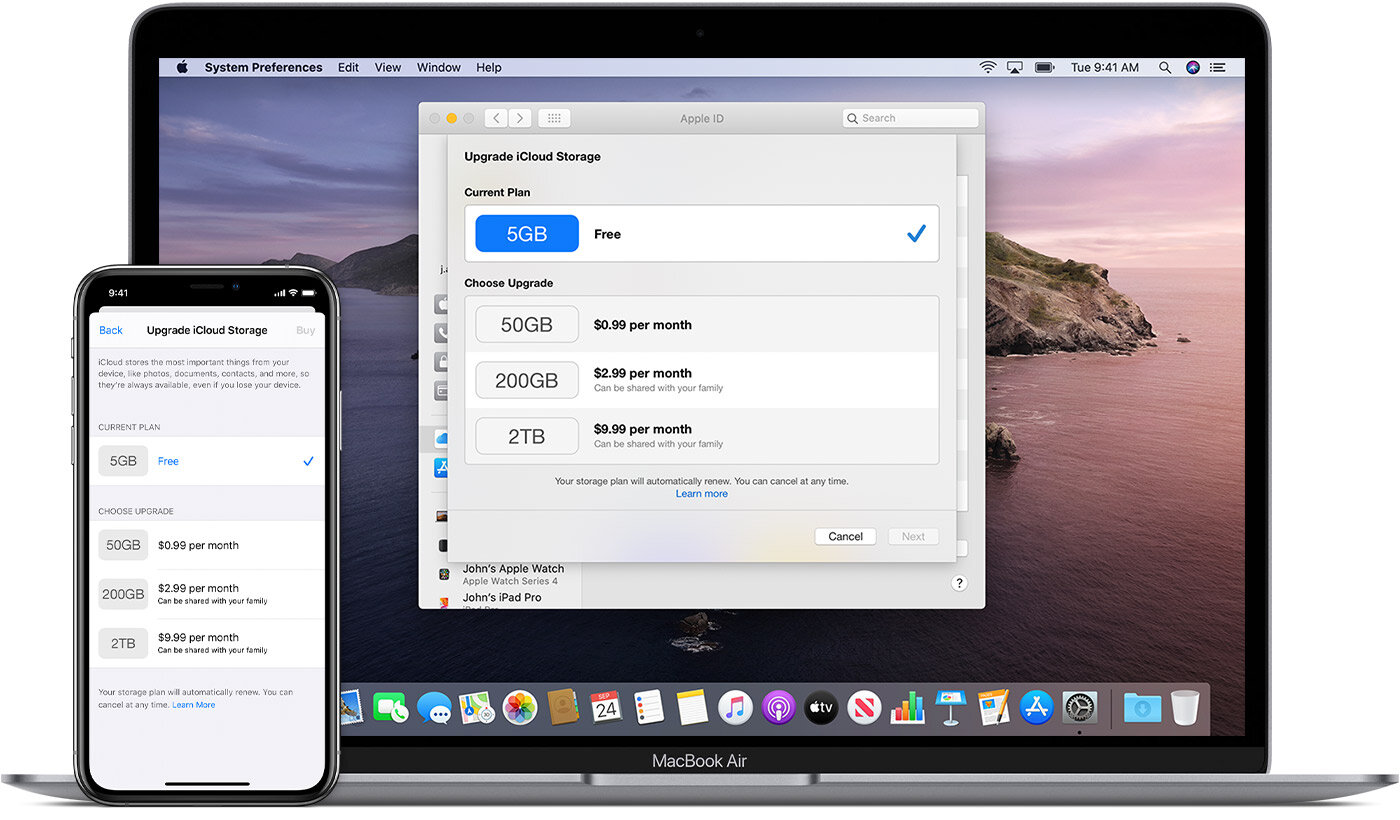
Upgrade your iCloud storage from any device
Whether you’re on an iPhone, iPad, iPod touch, Mac, or PC, upgrading your iCloud storage is simple. Choose your device below and upgrade in just a few quick steps.
On your iPhone, iPad, or iPod touch
Go to Settings > [your name] > iCloud > Manage Storage or iCloud Storage.
Tap Buy More Storage or Change Storage Plan.
Choose a plan.
Tap Buy and follow the onscreen instructions.
On your Mac
Choose Apple menu > System Preferences, then click Apple ID. If you’re using macOS Mojave or earlier, you don’t need to click Apple ID.
Click iCloud.
Click Manage in the lower-right corner.
Click Change Storage Plan or Buy More Storage, and choose a plan.
Click Next and enter your Apple ID password.
On your Windows PC
Open iCloud for Windows.
Click Storage.
Click Change Storage Plan.
Choose a plan, then click Next.
Enter your Apple ID password, then click Buy.




