
Optimizing Parallels

parallels.png

Optimize Virtual Machine for Games, Graphics, Productivity, or Development

When creating a virtual machine, you can optimize it according to your needs. You can choose to configure the virtual machine for:

  • Productivity. Choose this profile if you're using the virtual machine for your everyday work with text editors, email, web browsers, etc.

  • Games only. Choose this profile if you're using the virtual machine to play PC games on your Mac.

If you're using Parallels Desktop for Mac Pro Edition, you can configure your virtual machine also for:

  • Design. Choose this profile if you're using the virtual machine to work with graphics applications.

  • Software development. Choose this profile if you're using the virtual machine to develop and test software.

  • Software testing. Choose this profile if you're using the virtual machine to test software in an isolated environment.

You can change this setting after the virtual machine is created:

  1. Start Parallels Desktop.

  2. In Control Center, right-click the virtual machine (it must be shut down) and choose Configure.

  3. On the General tab, click Change.

  4. Select the profile that best fits your need.

Note: If you made any changes to the virtual machine configuration and then select a new profile, your changes may be reset to this profile default values.

force power off, Mac

2018-macbook-power-button-callout.jpg

Turn off (shut down) your Mac

The best way to shut down your Mac is to choose Shut Down from the Apple menu .

Just as your Mac follows a startup process after it turns on, it follows a shutdown process before it turns off. That process includes automatically quitting all open apps and logging out of your macOS user account. 

If your Mac doesn't shut down, try Force Quit to close any apps that aren't responding. If that doesn't work, press and hold the power button until the Mac turns off.

Press and hold the power button to turn off your Mac only if it isn't responding. You'll lose unsaved changes to any documents that you have open.

(Reserve this only for extreme cases. Hold for 20 seconds. Listen/observe for indication of being powered down. Then quick press to turn back on. -rws)

Connect to Wi-Fi (Mac)

macos-high-sierra-menu-bar-wifi-networks.jpg

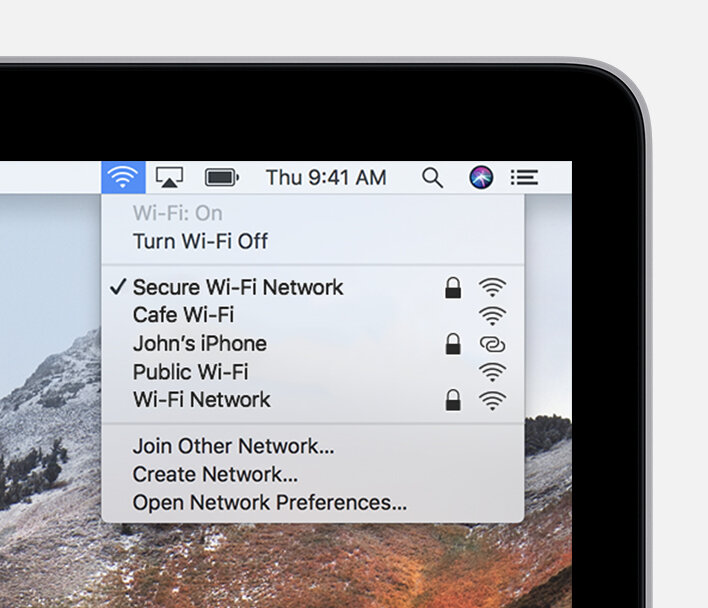
Click  in the menu bar, then choose a network. If Wi-Fi is off, click , then select Turn Wi-Fi On.*

If you connect to a public Wi-Fi network, a window might appear with terms and conditions you're asked to agree to before you can connect.

Connect to a secure Wi-Fi network

Secure Wi-Fi networks are password-protected and have  by their names. 

  1. Click  in the menu bar. If Wi-Fi is off, click , then choose Turn Wi-Fi On.*

  2. Choose a network.

  3. Enter the password, then click Join. If you don't know the password to the Wi-Fi network, contact the network administrator.




