How to start up from macOS Recovery
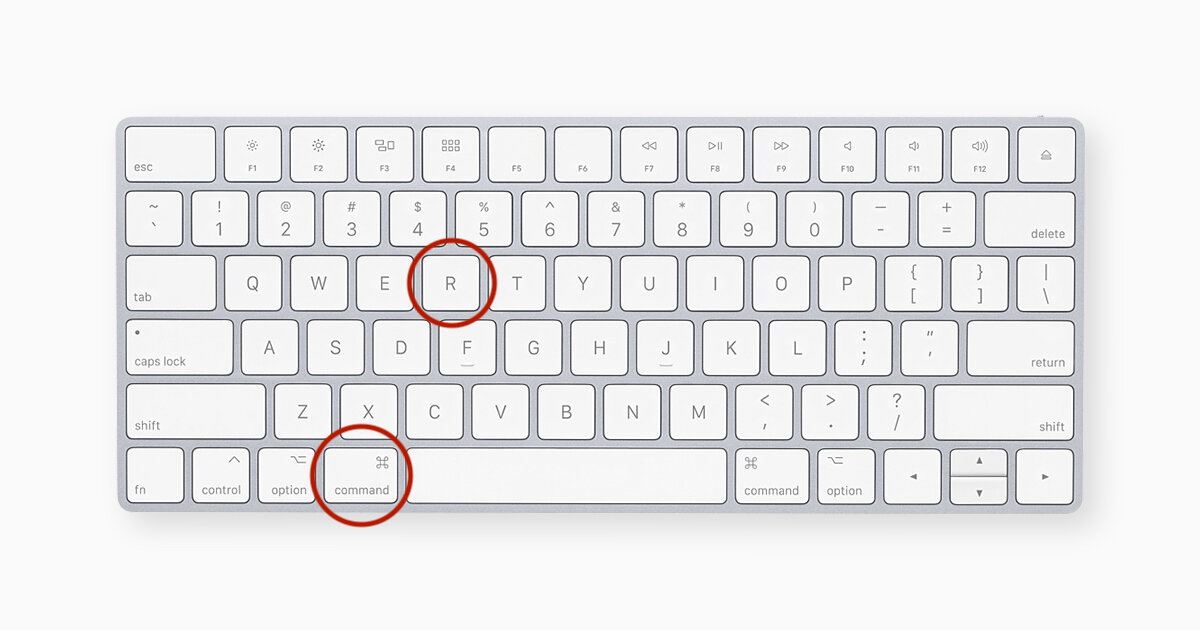
Turn on your Mac and immediately press and hold these two keys: Command (⌘) and R. Need help?
Release the keys when you see an Apple logo, spinning globe, or other startup screen.
You might be prompted to enter a password, such as a firmware password or the password of a user who is an administrator of this Mac. Enter the requested password to continue.
Startup is complete when you see the utilities window:

5. After starting up from macOS Recovery, select a utility, then click Continue:
Restore From Time Machine Backup: Restore your Mac from a Time Machine backup.
Reinstall macOS: Download and reinstall the Mac operating system.
Get Help Online: Use Safari to browse the web and find help for your Mac. Links to Apple's support website are included. Browser plug-ins and extensions are disabled.
Disk Utility: Use Disk Utility to repair your disk or erase your disk or other storage device.
Additional utilities are available from the Utilities menu in the menu bar: Startup Security Utility (or Firmware Password Utility), Network Utility, and Terminal.
6. To quit macOS Recovery, choose Restart or Shut Down from the Apple menu . If you want to choose a different startup disk before quitting, choose Startup Disk from the Apple menu.