
Reset Airport Express

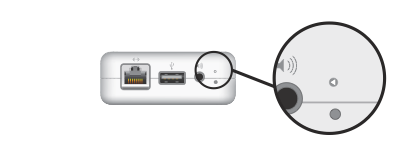
Airport Express (1st generation)
Airport Express (1st generation)

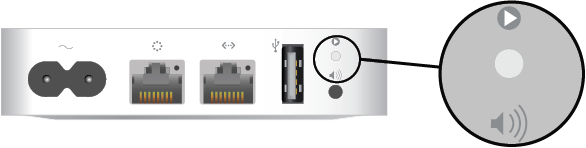
Airport Express (2nd Generation)

Airport Express (2nd Generation)

Soft reset:

  1. Make sure that the base station is connected to power.

  2. Press and hold the reset button for 1 second, then release the button. The status light on the base station flashes amber.

  3. From the Wi-Fi status menu in the menu bar, choose the Wi-Fi network created by your base station.

  4. Open AirPort Utility, which is in the Utilities folder of your Applications folder.

  5. Click the icon for your base station in AirPort Utility, then click Edit from the pop-up menu. You can now change the password or reconfigure the base station as needed. When done, click Update.

Hard reset:

  1. Make sure that the base station is connected to power.

  2. Press and hold the reset button for about 5 seconds, until the status light on the base station flashes amber rapidly. Then release the button.

  3. Wait about a minute for the base station to finish restarting.

  4. Open AirPort Utility, which is in the Utilities folder of your Applications folder.

  5. Click the Other Wi-Fi Devices button, then select your base station from the list. Click Edit.

  6. Click the Other Options button.

  7. Click ”Restore previous settings,” then click Next until you get to the final window.

  8. When AirPort Utility indicates that setup is complete, click Done.


Thunderbolt 3 and USB-C Adapter types

If the cable from your external device doesn't connect to the Thunderbolt 3 or USB-C port on your Mac or iPad Pro, you might need an adapter.

cable-id-thunderbolt-3.png

Thunderbolt 3

cable-id-usb-c.png

USB-C


Carrier Settings Updates

Update your carrier settings on your iPhone or iPad

Carrier settings updates let your carrier provider update carrier network and related settings to improve cellular network connectivity and performance. Carrier settings updates can also add support for features like VoLTE or Wi-Fi Calling. For more information on carrier settings updates, contact your carrier.

When a carrier setting update is available, you'll be prompted to install it. If your carrier releases a mandatory update, you'll see an OK button instead of an Update button to let you know that the update was downloaded and installed.

You can manually check for and install a carrier settings update with these steps:

  1. Make sure your device is connected to a Wi-Fi or cellular network.

  2. Tap Settings > General > About. If an update is available, you'll see an option to update your carrier settings.

To see the version of carrier settings on your device, tap Settings > General > About and look next to Carrier. To see additional carrier information, tap the version number.

If you insert a new SIM card into your iPhone or iPad, you need to download the carrier settings for your new carrier.

If you see No Service or Searching on your iPhone or iPad

If you see No Service or Searching on your iPhone or iPad (Wi-Fi + Cellular), or can't connect to a cellular network or cellular data, follow these steps:

Check your coverage area

Make sure that you're in an area with cellular network coverage. Then follow these steps:

  • To turn cellular data on or off, go to Settings, then tap Cellular or Mobile Data. If you're using your iPad, you might see Settings > Cellular Data.

  • If you're traveling internationally, make sure that your device is set up for data roaming. Go to Settings > Cellular > Cellular Data Options > Data Roaming.

Restart your iPhone or iPad

Restart your device. If you're not sure how to do this, follow these steps.


Check for a Carrier Settings update

To manually check for and install a carrier settings update:

  1. Make sure that your device is connected to a Wi-Fi or cellular network.

  2. Tap Settings > General > About. If an update is available, you'll see an option to update your carrier settings.

  3. To see the version of carrier settings on your device, tap Settings > General > About and look next to Carrier.

If you insert a new SIM card into your iPhone or iPad, you need to download the carrier settings for your new carrier.


Take out the SIM card

After removing the SIM card, put it back in. You might need to contact your carrier:

  • If the SIM card is damaged, or doesn't fit in the SIM tray, ask your carrier for a new SIM card.

  • If you transferred your SIM card from another device, ask your carrier if your SIM card works with your iPhone or iPad.

Learn more about removing your SIM card.


Reset your Network Settings.

Go to Settings > General > Reset > Reset Network Settings. This also resets Wi-Fi networks and passwords, cellular settings, and VPN and APN settings that you've used before.


Update your iPhone or iPad

Update your iPhone or iPad to the latest version of iOS.


Contact your carrier 

Issues with your carrier or account might affect your service. Contact your carrier to:

  • Verify that your account is active and in good standing.

  • Make sure there are no outages in your area.

  • Check that your device isn't blocked from receiving cellular services and is set up with the right data plan.

Only your wireless carrier can access and manage details about your account. If you need help finding your wireless carrier's service page, use the Apple carrier-support article or an online search engine.

IMG_0959.jpeg




