1 Front camera
2 Side button
3 SIM tray
4 Home button/Touch ID
5 Lightning connector
6 Volume buttons
7 Ring/Silent switch
8 Rear camera
9 Flash


1 Front camera
2 Side button
3 SIM tray
4 Home button/Touch ID
5 Lightning connector
6 Volume buttons
7 Ring/Silent switch

8 Rear camera
9 Flash
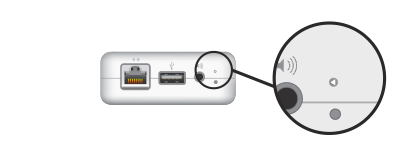
Airport Express (1st generation)

Airport Express (2nd Generation)
Soft reset:
Make sure that the base station is connected to power.
Press and hold the reset button for 1 second, then release the button. The status light on the base station flashes amber.
From the Wi-Fi status menu in the menu bar, choose the Wi-Fi network created by your base station.
Open AirPort Utility, which is in the Utilities folder of your Applications folder.
Click the icon for your base station in AirPort Utility, then click Edit from the pop-up menu. You can now change the password or reconfigure the base station as needed. When done, click Update.
Hard reset:
Make sure that the base station is connected to power.
Press and hold the reset button for about 5 seconds, until the status light on the base station flashes amber rapidly. Then release the button.
Wait about a minute for the base station to finish restarting.
Open AirPort Utility, which is in the Utilities folder of your Applications folder.
Click the Other Wi-Fi Devices button, then select your base station from the list. Click Edit.
Click the Other Options button.
Click ”Restore previous settings,” then click Next until you get to the final window.
When AirPort Utility indicates that setup is complete, click Done.
If the cable from your external device doesn't connect to the Thunderbolt 3 or USB-C port on your Mac or iPad Pro, you might need an adapter.

Thunderbolt 3
Mac models that have Thunderbolt 3 ports. These ports support both Thunderbolt 3 and USB-C connections.

USB-C
Mac models that have a USB-C port. This port supports USB-C connections.
iPad Pro models that have a USB-C port. This port supports USB-C connections.
Carrier settings updates let your carrier provider update carrier network and related settings to improve cellular network connectivity and performance. Carrier settings updates can also add support for features like VoLTE or Wi-Fi Calling. For more information on carrier settings updates, contact your carrier.
When a carrier setting update is available, you'll be prompted to install it. If your carrier releases a mandatory update, you'll see an OK button instead of an Update button to let you know that the update was downloaded and installed.
You can manually check for and install a carrier settings update with these steps:
Make sure your device is connected to a Wi-Fi or cellular network.
Tap Settings > General > About. If an update is available, you'll see an option to update your carrier settings.
To see the version of carrier settings on your device, tap Settings > General > About and look next to Carrier. To see additional carrier information, tap the version number.
If you insert a new SIM card into your iPhone or iPad, you need to download the carrier settings for your new carrier.