Apple TV Remote on iPhone, iPad and iTouch devices

iPhone-AppleTV-Remote.png

With the Apple TV Remote in Control Center, you can control your Apple TV or AirPlay 2-compatible smart TV with your iPhone, iPad, or iPod touch—even if you lost the remote for your Apple TV. 

Set up the Apple TV Remote in Control Center

Before you begin, add the Apple TV Remote to Control Center on your iPhone, iPad, or iPod touch:

If you have a device with iOS 11 or later, you can activate Apple TV controls in Settings on the device.

  1. On the iOS or iPadOS device, go to Settings > Control Center, then tap Customize Controls.

  2. Tap the Add button (Green +)  next to Apple TV Remote in the More Controls list to add it to Control Center.
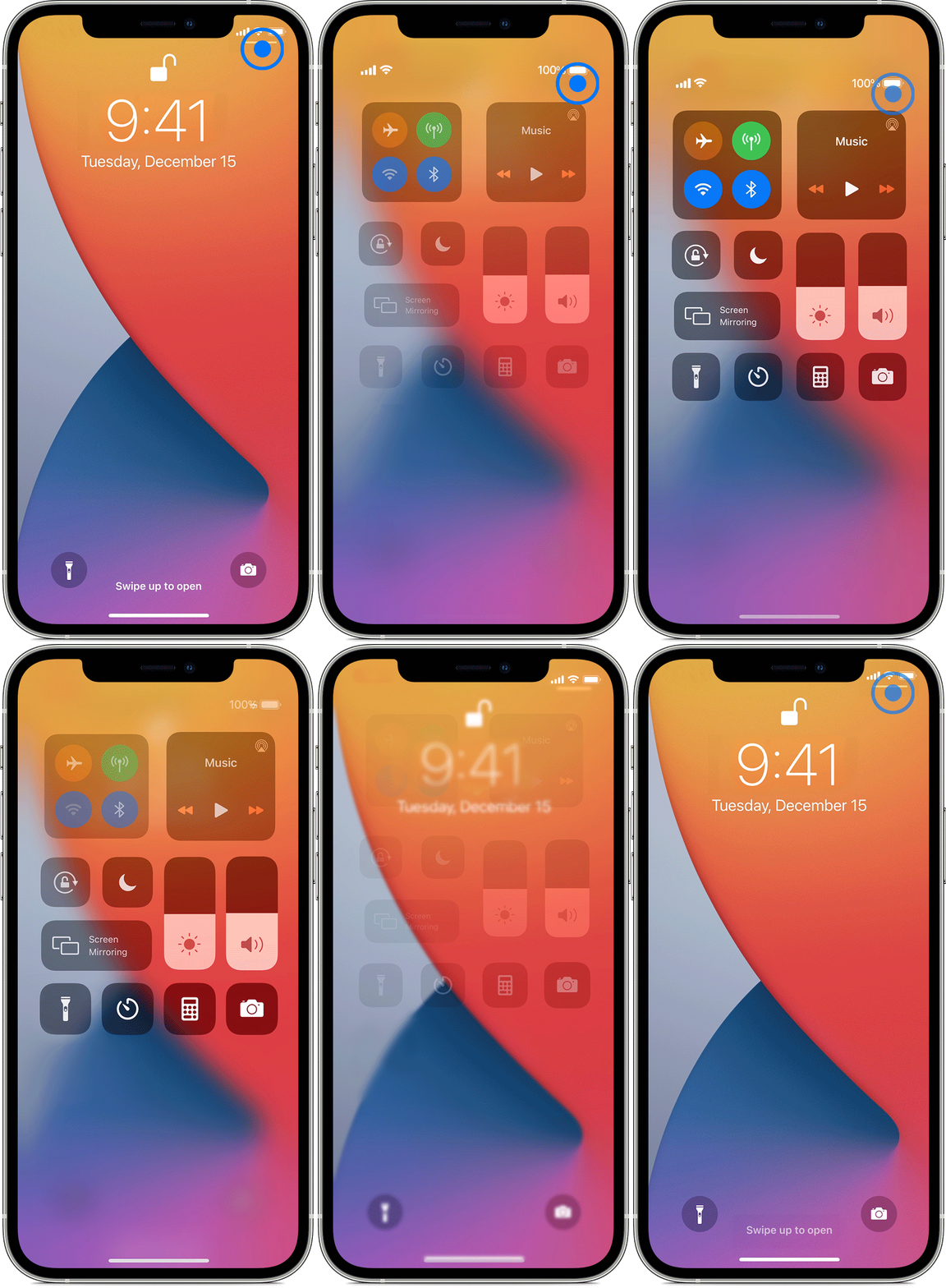
iPhone X and later - How to open and close Control Center To open Control Center, swipe down from the top-right corner of your screen. To close Control Center, swipe up from the bottom of the screen or tap the screen. If you swipe too close to the t…

iPhone X and later - How to open and close Control Center
To open Control Center, swipe down from the top-right corner of your screen.
To close Control Center, swipe up from the bottom of the screen or tap the screen.
If you swipe too close to the top-center of your screen, you might open Notification Center instead of Control Center.
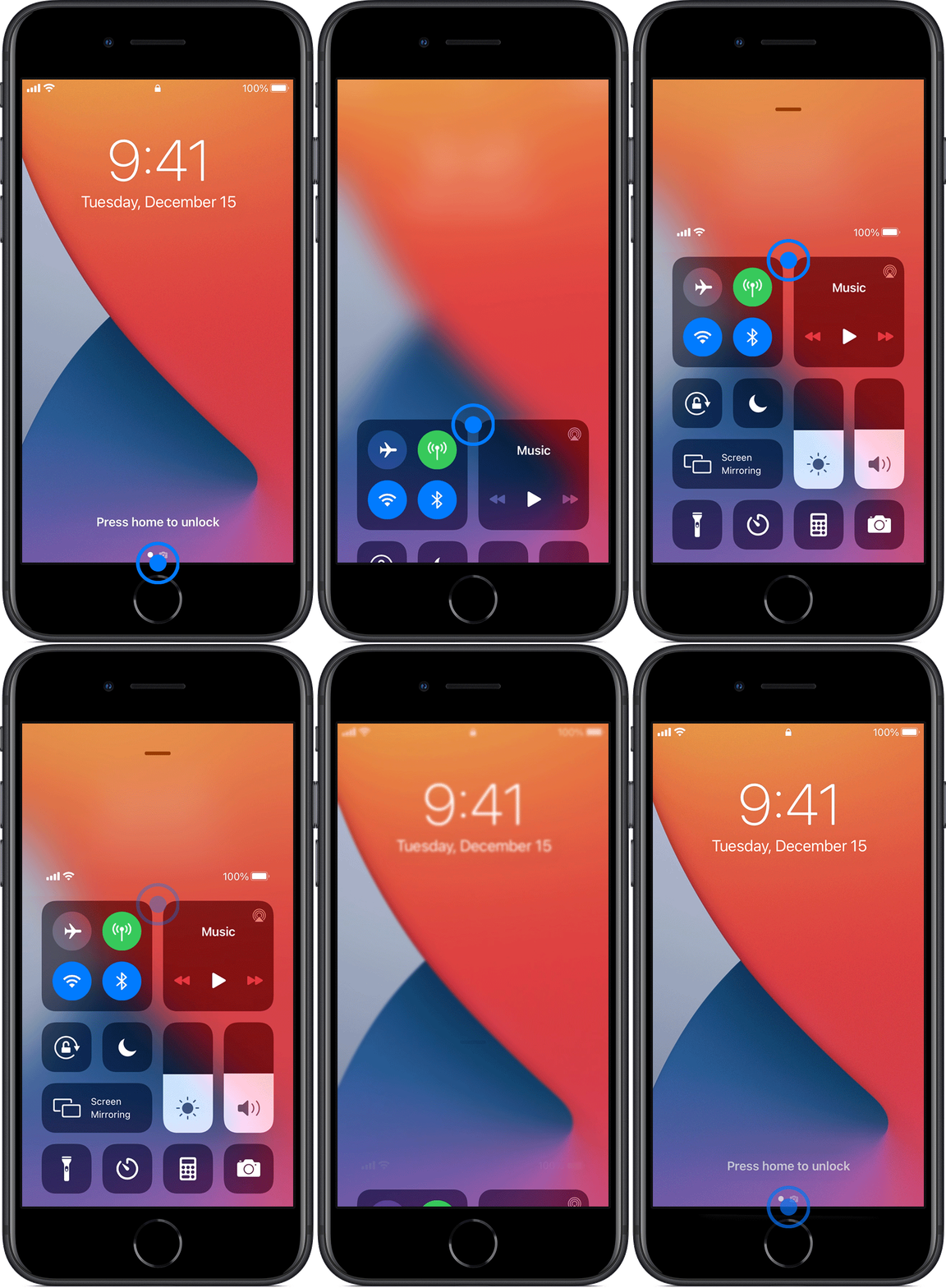
iPhone SE, iPhone 8 and earlier, and iPod touch - How to open and close Control Center To open Control Center, swipe up from the bottom edge of any screen. To close Control Center, tap the top of the screen or press the Home button.

iPhone SE, iPhone 8 and earlier, and iPod touch - How to open and close Control Center
To open Control Center, swipe up from the bottom edge of any screen.
To close Control Center, tap the top of the screen or press the Home button.
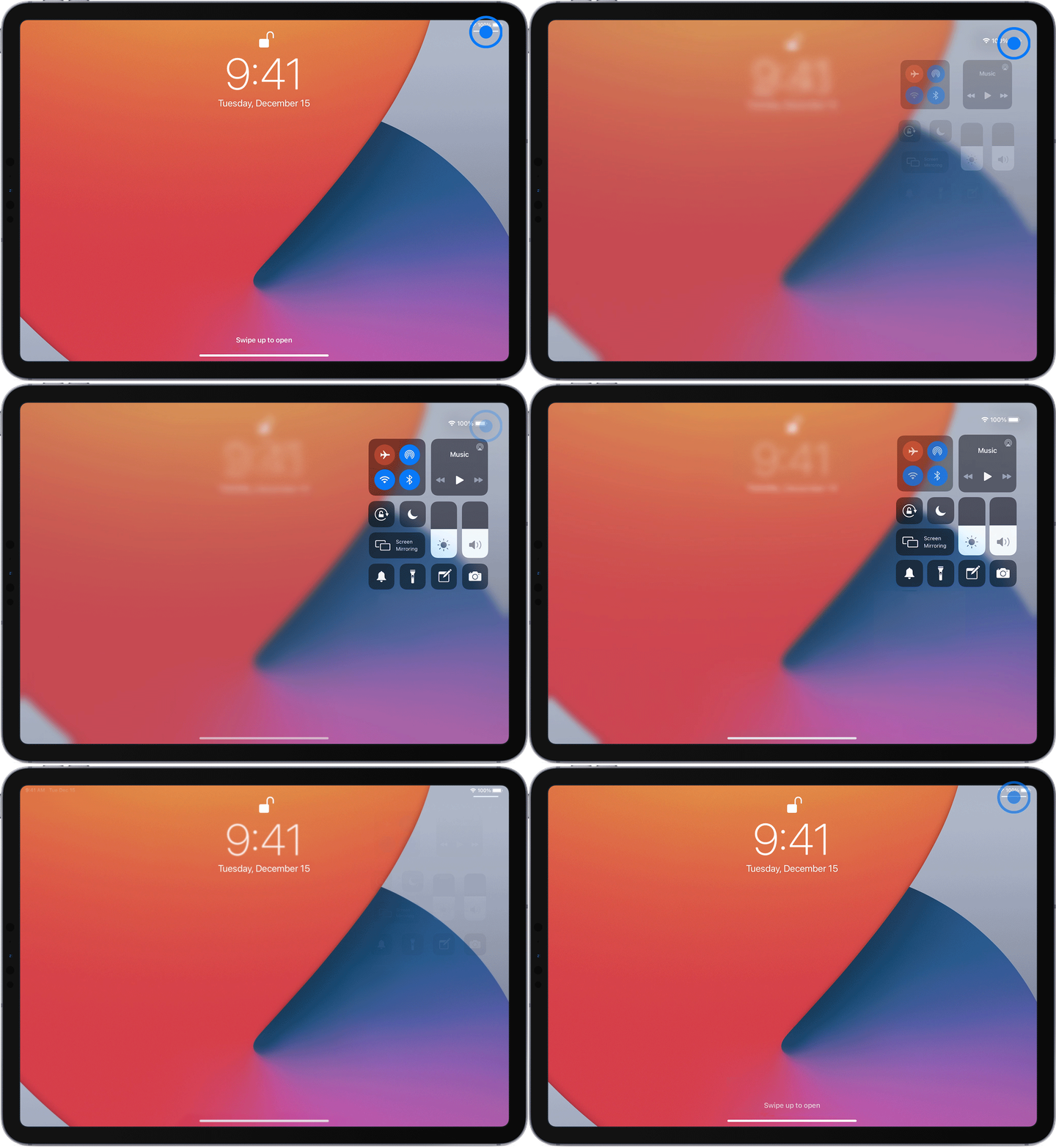
iPad - How to open and close Control Center To open Control Center, swipe down from the top-right corner of your screen. To close Control Center, swipe up from the bottom of the screen, or just tap the screen.

iPad - How to open and close Control Center
To open Control Center, swipe down from the top-right corner of your screen.
To close Control Center, swipe up from the bottom of the screen, or just tap the screen.

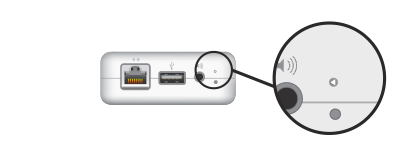
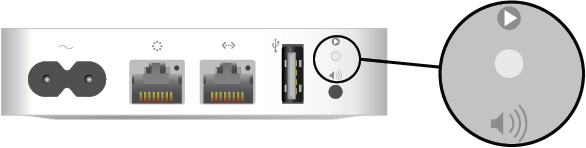
Reset Airport Express

Airport Express (1st generation)

Airport Express (1st generation)

Airport Express (2nd Generation)

Airport Express (2nd Generation)

Soft reset:

  1. Make sure that the base station is connected to power.

  2. Press and hold the reset button for 1 second, then release the button. The status light on the base station flashes amber.

  3. From the Wi-Fi status menu in the menu bar, choose the Wi-Fi network created by your base station.

  4. Open AirPort Utility, which is in the Utilities folder of your Applications folder.

  5. Click the icon for your base station in AirPort Utility, then click Edit from the pop-up menu. You can now change the password or reconfigure the base station as needed. When done, click Update.

Hard reset:

  1. Make sure that the base station is connected to power.

  2. Press and hold the reset button for about 5 seconds, until the status light on the base station flashes amber rapidly. Then release the button.

  3. Wait about a minute for the base station to finish restarting.

  4. Open AirPort Utility, which is in the Utilities folder of your Applications folder.

  5. Click the Other Wi-Fi Devices button, then select your base station from the list. Click Edit.

  6. Click the Other Options button.

  7. Click ”Restore previous settings,” then click Next until you get to the final window.

  8. When AirPort Utility indicates that setup is complete, click Done.


Thunderbolt 3 and USB-C Adapter types

If the cable from your external device doesn't connect to the Thunderbolt 3 or USB-C port on your Mac or iPad Pro, you might need an adapter.

cable-id-thunderbolt-3.png

Thunderbolt 3

cable-id-usb-c.png

USB-C