Find the model and serial number of your Mac

Use About This Mac

From the Apple menu  in the corner of your screen, choose About This Mac. You should seel see an overview of your Mac, including its model name and serial number.
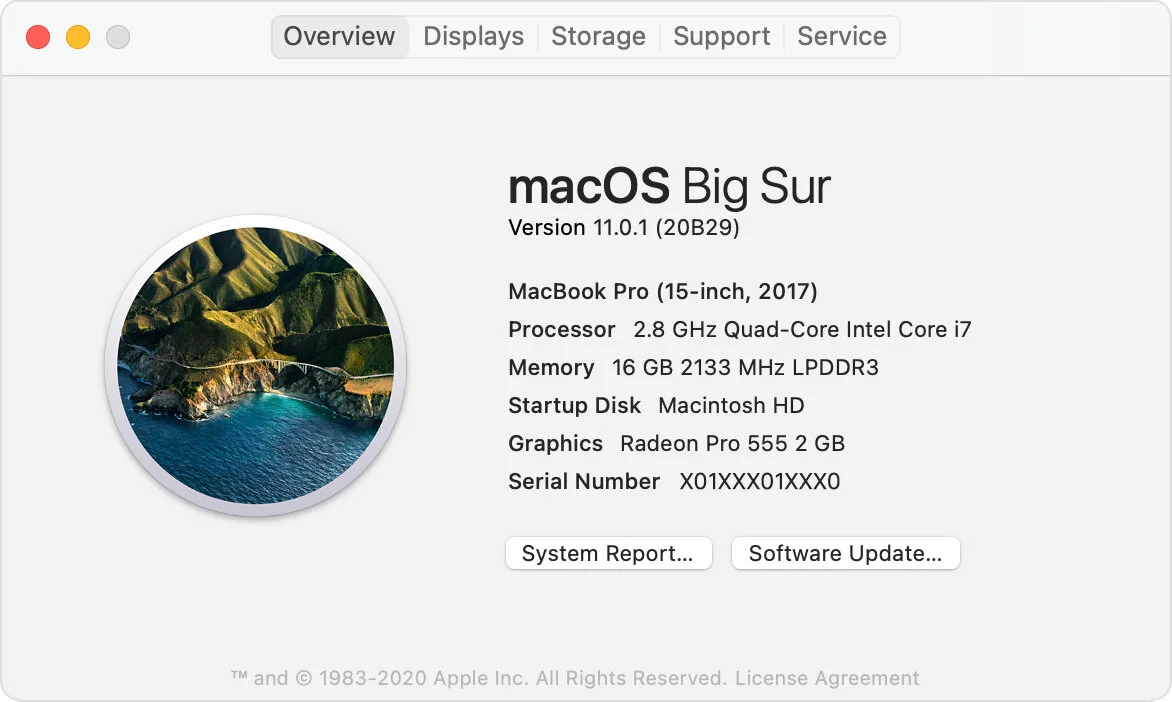
macos-big-sur-about-this-mac.jpg

If you see a window like this, double-click the version number beneath “OS X” to show the serial number:

mavs_about_this_mac.png

Use System Information

The System Information app also shows your Mac model and serial number. Open the app, then select Hardware on the left side of the System Information window. The model name and serial number appear on the right: 

macos-big-sur-mbp-system-report-hardware.png


Verizon Mobile Phone Voicemail Comparison

Number of messages, duration and transcription may be important considerations.

Number of messages, duration and transcription may be important considerations.

Saving voicemails to device may be an important consideration.
verizon-voicemail-chart3.png
verizon-voicemail-chart4.png

How can I save my voicemails?

iPhone:

  1. Open the Phone app on iPhone.

  2. Tap the Voicemail tab.

  3. Tap the voicemail you want to save, and tap the Share icon that appears.

  4. Select how you want to save your message (e.g., text, email, save to files, etc.), and follow the onscreen prompts.

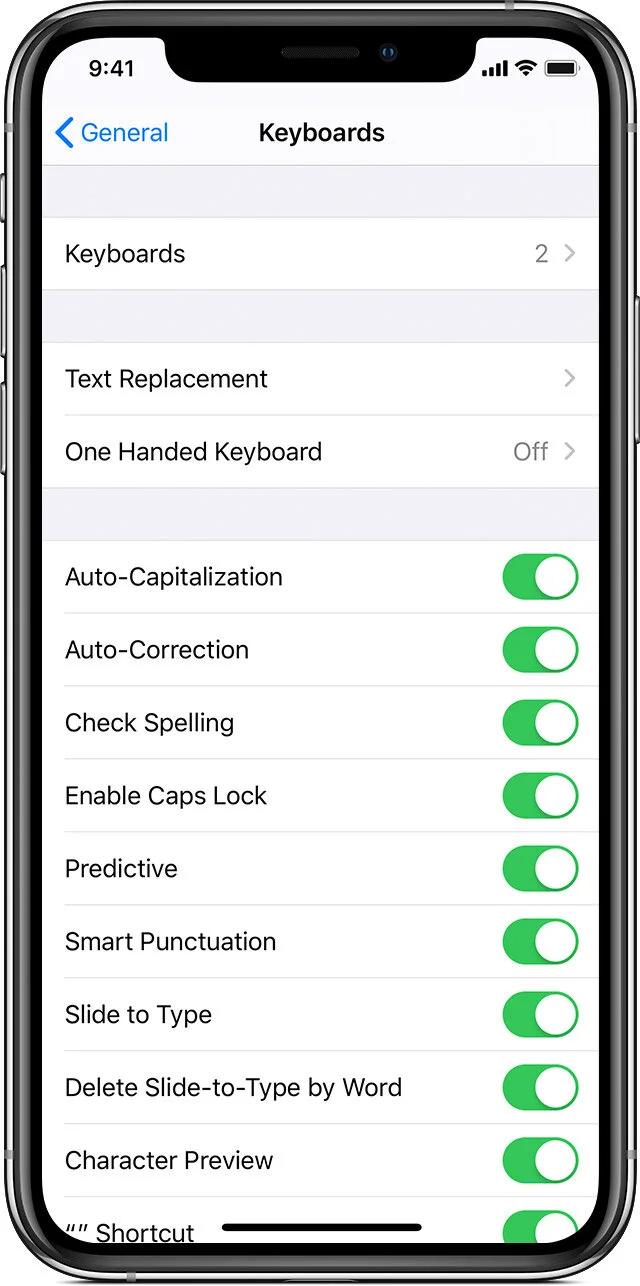
iOS keyboard

ios13-iphone-xs-settings-general-keyboards.jpg

Add or remove a keyboard for another language

  1. Go to Settings  > General > Keyboard.

  2. Tap Keyboards, then do any of the following:

    • Add a keyboard: Tap Add New Keyboard, then choose a keyboard from the list. Repeat to add more keyboards.

    • Remove a keyboard: Tap Edit, tap  next to the keyboard you want to remove, tap Delete, then tap Done.

    • Reorder your keyboard list: Tap Edit, drag  next to a keyboard to a new place in the list, then tap Done.

ios13-mail-emoji-menu-icon.png
ios13-mail-global-keyboard-menu-icon.png

If you add a keyboard for a different language, the corresponding language is automatically added to the Preferred Language Order list. You can view this list and add languages directly to it in Settings > General > Language & Region. You can also reorder the list to change how apps and websites display text.

Switch to another keyboard

  1. While typing text, touch and hold  or .

  2. Tap the name of the keyboard you want to switch to.

You can also tap  or  to switch from one keyboard to another. Continue tapping to access other enabled keyboards.

To switch between keyboards on Magic Keyboard, see Switch between language and emoji keyboards.

Assign an alternative layout to a keyboard

You can use an alternative keyboard layout that doesn’t match the keys on your keyboard.

  1. Go to Settings  > General > Keyboard > Keyboards.

  2. Tap a language at the top of the screen, then select an alternative layout from the list.

Apple TV Remote on iPhone, iPad and iTouch devices

iPhone-AppleTV-Remote.png

With the Apple TV Remote in Control Center, you can control your Apple TV or AirPlay 2-compatible smart TV with your iPhone, iPad, or iPod touch—even if you lost the remote for your Apple TV. 

Set up the Apple TV Remote in Control Center

Before you begin, add the Apple TV Remote to Control Center on your iPhone, iPad, or iPod touch:

If you have a device with iOS 11 or later, you can activate Apple TV controls in Settings on the device.

  1. On the iOS or iPadOS device, go to Settings > Control Center, then tap Customize Controls.

  2. Tap the Add button (Green +)  next to Apple TV Remote in the More Controls list to add it to Control Center.

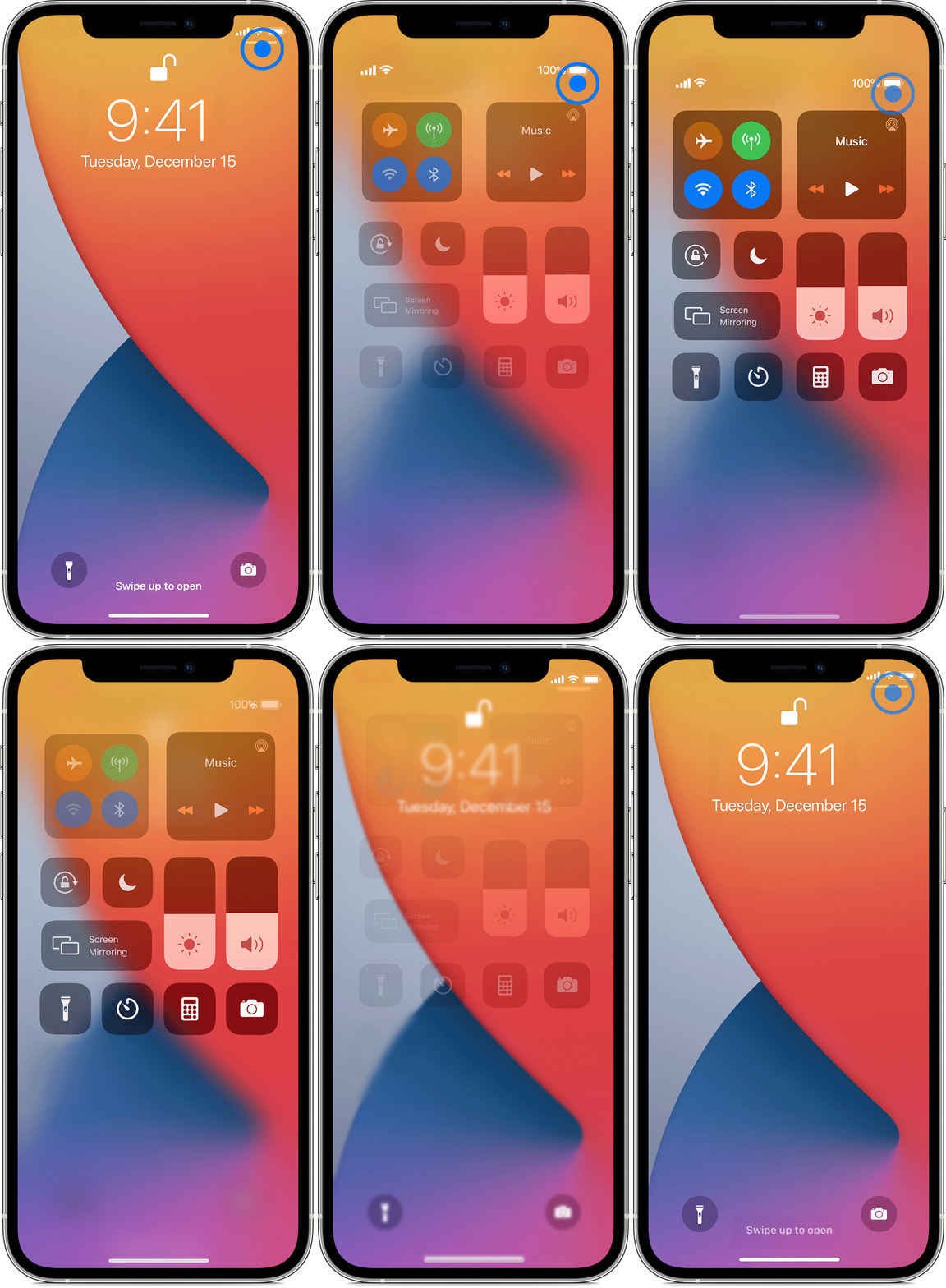
iPhone X and later - How to open and close Control Center To open Control Center, swipe down from the top-right corner of your screen. To close Control Center, swipe up from the bottom of the screen or tap the screen. If you swipe too close to the t…

iPhone X and later - How to open and close Control Center
To open Control Center, swipe down from the top-right corner of your screen.
To close Control Center, swipe up from the bottom of the screen or tap the screen.
If you swipe too close to the top-center of your screen, you might open Notification Center instead of Control Center.

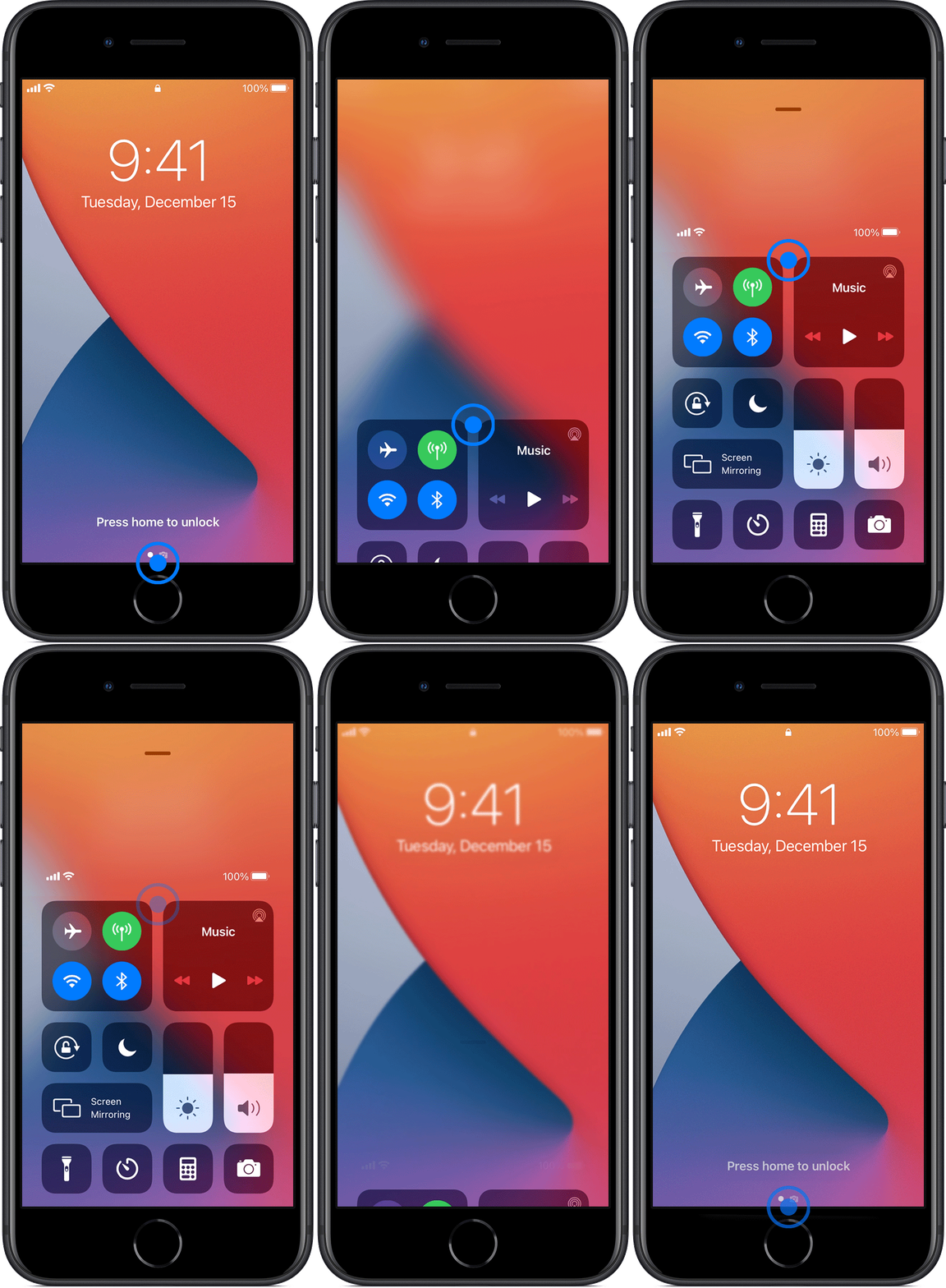
iPhone SE, iPhone 8 and earlier, and iPod touch - How to open and close Control Center To open Control Center, swipe up from the bottom edge of any screen. To close Control Center, tap the top of the screen or press the Home button.

iPhone SE, iPhone 8 and earlier, and iPod touch - How to open and close Control Center
To open Control Center, swipe up from the bottom edge of any screen.
To close Control Center, tap the top of the screen or press the Home button.

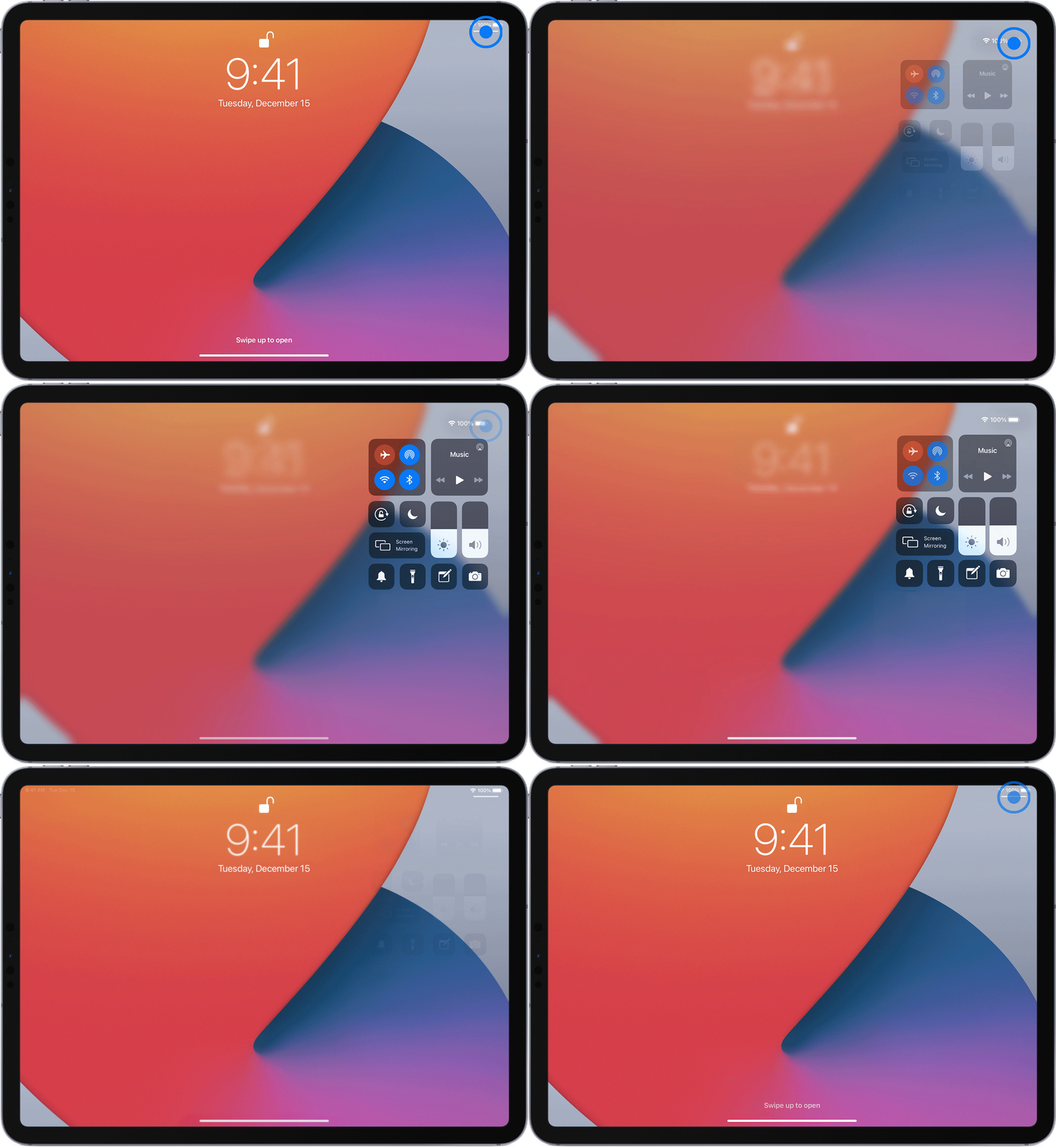
iPad - How to open and close Control Center To open Control Center, swipe down from the top-right corner of your screen. To close Control Center, swipe up from the bottom of the screen, or just tap the screen.

iPad - How to open and close Control Center
To open Control Center, swipe down from the top-right corner of your screen.
To close Control Center, swipe up from the bottom of the screen, or just tap the screen.