
HP Photosmart All-in-One Printers - 'Photo Tray Problem'

HP Photosmart All-in-One Printers - The 'Photo Tray Problem' Message Displays on the Control Panel

Issue

The 'Photo Tray Problem' error message displays on the control panel display, and then the product does not print.

Try the following solutions in the order presented to resolve the issue. When one of the solutions resolves the issue, there is no need to continue troubleshooting.

Solution one: Check the photo tray

  1. Lift the output tray and extend the photo tray.Figure : Extend the photo tray

  2. Remove all photo paper from the photo tray.

  3. Slide the photo tray all the way into its slot, as far as it can go.

  4. Lower the output tray, and then press the OK button () on the control panel.

  • If these steps resolved the issue, you do not need to continue troubleshooting.

  • If the issue persists, continue to the next solution.

Solution two: Perform a power reset

  1. Press the Power button () to turn off the product.

  2. Unplug the power cord from the electrical outlet.

  3. Disconnect the power cord from the back of the product.

  4. Disconnect the USB cable from the back of the product.

  5. Wait 30 seconds, and then reconnect the power cord to the product.

  6. Plug the power cord back into the wall outlet. Do not use a surge protector, extension cord, or power strip.

  7. Press the Power button () to turn on the product.

  8. Reconnect the USB cable to the product.

  • If these steps resolved the issue, you do not need to continue troubleshooting.

  • If the issue persists, continue to the next solution.

Solution three: Change the copy options

Use the product control panel to change the copy options.

  1. Press the down arrow button () to select Copy Menu, and then press the OK button ().

  2. Press the down arrow button () to select Paper Size, and then press the OK button ().

  3. Press the down arrow button () to select Automatic, and then press the OK button ().

  4. Press the down arrow button () to select Paper Type, and then press the OK button ().

  5. Press the down arrow button () to select Automatic, and then press the OK button ().

  6. Press the down arrow button () to select Set as New Defaults, and then press the OK button (). The Set as New Defaultsmenu opens.

  7. Press the down arrow button () to select Yes, change defaults, and then press the OK button ().

  • If these steps resolved the issue, you do not need to continue troubleshooting.

  • If the issue persists, continue to the next solution.

Step four: Service the product

Service or replace your HP product if the issue persists after completing all the preceding steps.

Go to Contact HP Customer Support to schedule a product repair or replacement. If you are in Asia Pacific, you will be directed to a local service center in your area.

To confirm your warranty status, go to HP Product Warranty Check. Repair fees might apply for out-of-warranty products.
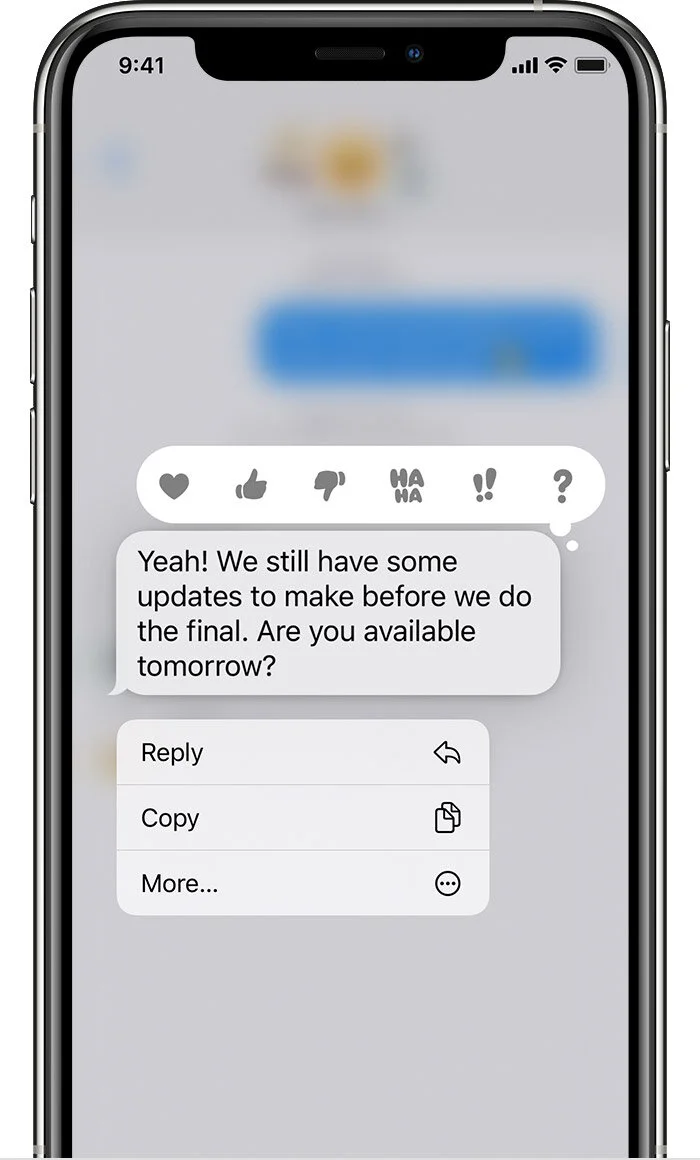
Reply to Specific Message

ios14-iphone-11pro-messages-inline-reply-options.jpg

With iOS 14 and iPadOS 14, you can reply directly to a specific message and use mentions to call attention to certain messages and people.

How to reply to a specific message

  1. Open a Messages conversation.

  2. Touch and hold a message bubble, then tap the Reply button .

  3. Type your message, then tap the Send button .

You can reply to a specific message in conversations with one person and in groups.

iMessage and SMS/MMS colors

Learn why some of your message bubbles are blue or green.

You can use the Messages app on your iPhone, iPad, or iPod touch to send messages. Those messages are sent as iMessage or SMS/MMS. Learn more about the difference between the message types.

ios13-iphone-xs-messages-imessage.jpg

iMessageiMessages are texts, photos, or videos that you send to another iPhone, iPad, iPod touch, or Mac over Wi-Fi or cellular-data networks. These messages are always encrypted and appear in blue text bubbles. To turn iMessage on or off, go to Settings > Messages.

SMS/MMS

SMS/MMS

If you aren’t using iMessage, you can use SMS/MMS. These messages are texts and photos that you send to other cell phones or another iPhone, iPad, or iPod touch. SMS/MMS messages aren't encrypted and appear in green text bubbles on your device.

To use SMS/MMS on an iPhone, you need a text-messaging plan. Contact your wireless carrier for more information. You can also set up your other Apple devices to send and receive messages from any Apple device.

If Wi-Fi is unavailable, iMessages will be sent over cellular data. Cellular data rates might apply.

moto g8 plus - bluetooth pairing

motorola-g8-10811-hero.png

Pair with Bluetooth device

To connect with a new Bluetooth accessory or other device, you need to pair with it. You only need to do this once for each device.

  1. Set the device you want to pair (accessory, computer, other phone, etc.) to Bluetooth discovery mode so that your phone can find it. See the device manufacturer’s instructions.

  2. On your phone, go to Settings > Connected devices.

  3. Touch .

    As the phone searches for available devices, you'll see .

  4. Touch an available device to connect.

  5. Do any of the following:

    • If a pairing code appears on your phone and Bluetooth device, make sure the codes match. (If they don't, touch Cancel, verify the name of the device you want to pair with, and try again.)

    • If your device shows a passkey (like 0000 or 1234), enter it on your phone. If you don't see a place to enter it, swipe down from the top of your screen and touch the Bluetooth notification.

    • If your device doesn't show a passkey and you must enter one for the device to pair, see the device manufacturers' instructions.

  6. Touch Pair on your phone AND touch the pairing prompt on the other device. If you don't confirm on both devices, pairing will fail.

  7. Set sharing options if you'll want to share contacts, phone audio, media audio, or internet access.

TipIf you use a screen lock, you can define a paired Bluetooth device as a trusted device, keeping your phone unlocked while connected to it. When you disconnect or move out of range, your phone locks again. Go to Settings > Security > Smart Lock > Trusted devices.