
Smartfolders allow you to chunk your email into views by criteria that you deem most useful. It’s like a speadsheet formula for your email. -rws
Create Smart Mailboxes
Go to the Mail app on your Mac.
Choose Mailbox > New Smart Mailbox.
Enter a name for the Smart Mailbox.
Specify the criteria.
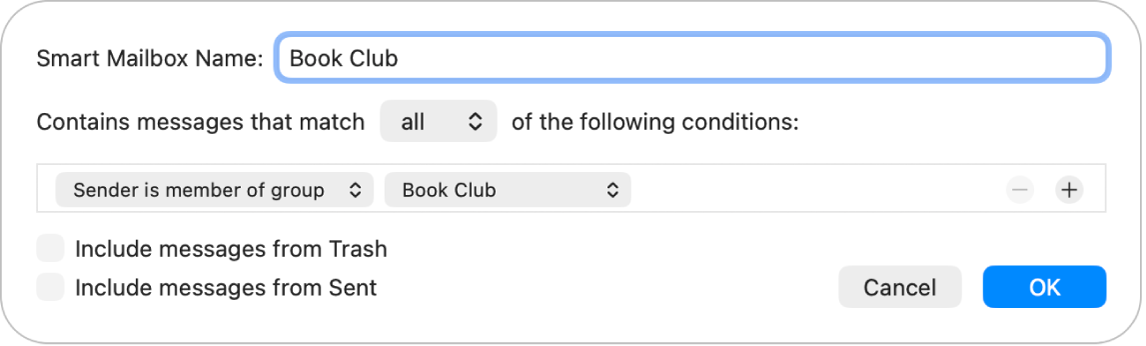
Set the first condition: Click the first pop-up menu, choose an option (such as From, Subject, or “Sender is member of group”), then complete the condition using the other menus or fields that are shown (they vary depending on your choice in the first pop-up menu).
For example, if you chose From, you can choose “contains” or “begins with” in the second pop-up menu, then enter a sender’s name in the text field. If you chose “Sender is member of group” in the first pop-up menu, you can choose a group name in the second pop-up menu.
Add or remove conditions: To set additional conditions, click . To remove a condition, click .
Set the scope of multiple conditions: If you have at least two conditions, a pop-up menu appears that lets you choose whether an email must meet any or all of the conditions to be included in the Smart Mailbox.
Include messages from the Trash or Sent mailbox: Select the checkbox to include emails that are in those mailboxes in your Smart Mailbox.
Click OK.
Whenever you select your Smart Mailbox in the sidebar, emails that match its criteria are listed.
To delete a Smart Mailbox, select it, then choose Mailbox > Delete Mailbox. The emails that were listed when you viewed the Smart Mailbox aren’t deleted.




