Hive Game Play with creator John Yianni


How to play hive, with John Yianni

How to play Hive: Novice play-through, with John Yianni


Is the Game Hive the Next Chess?

The game Hive, in which players control bugs of different types, has unique tactics, but it echoes some concepts from chess. - WSJ

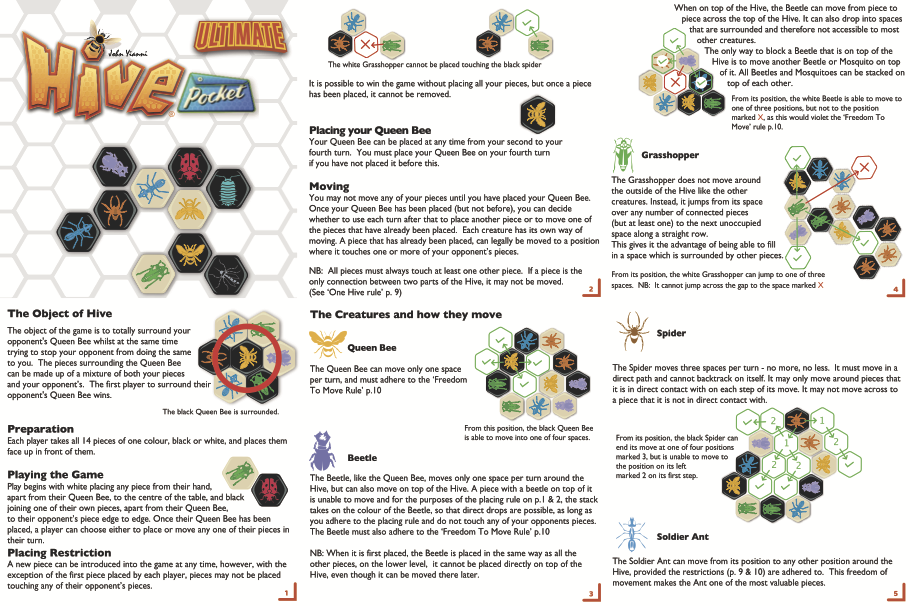
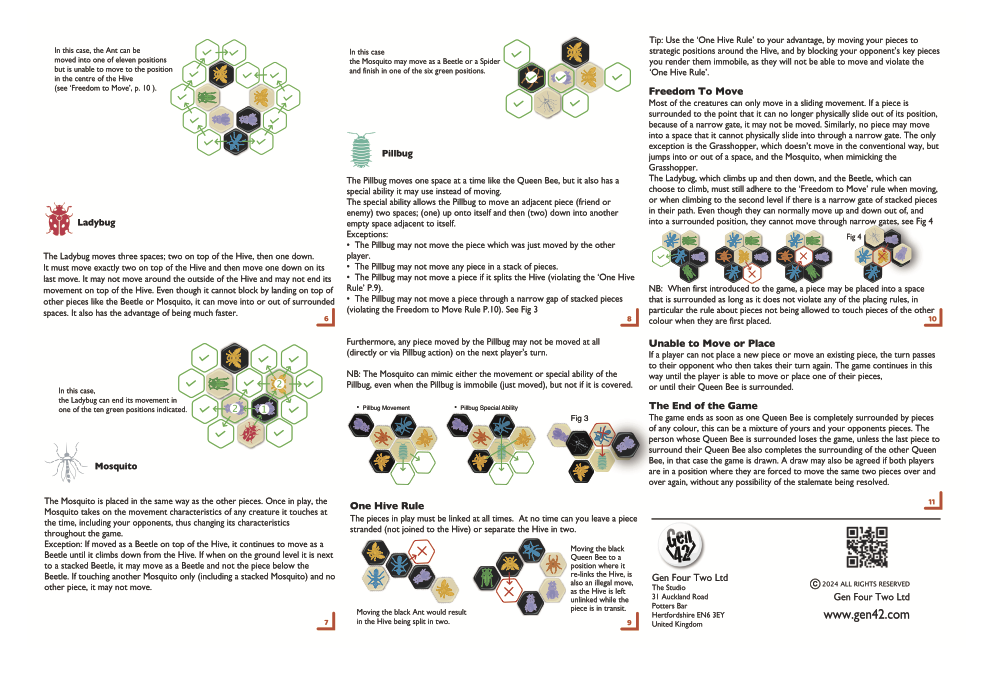
Hive is a two-player abstract strategy game played with hexagonal tiles representing insects. There is no board—players build the playing area by placing pieces that must stay connected (“one hive” rule). The goal is to completely surround the opponent’s Queen Bee. Each piece has unique movement:

  • Queen Bee moves one space

  • Ants slide any distance along the edge

  • Grasshoppers jump over the hive

  • Beetles climb on top of other pieces

  • Spiders move exactly three spaces

Hive delivers chess-like depth—perfect information, foresight, piece coordination, and tactical pinning/blocking—while offering major modern advantages: rules learnable in minutes, games typically last 10–20 minutes, extreme portability (especially the Pocket edition), and an engaging bug theme that feels fresher than medieval chess. The article argues these qualities could help Hive gain cultural ground in today’s faster-paced world.
Smart Folders in Apple Mail

Smartfolders allow you to chunk your email into views by criteria that you deem most useful. It’s like a speadsheet formula for your email. -rws

Create Smart Mailboxes

  1. Go to the Mail app on your Mac.

  2. Choose Mailbox > New Smart Mailbox.

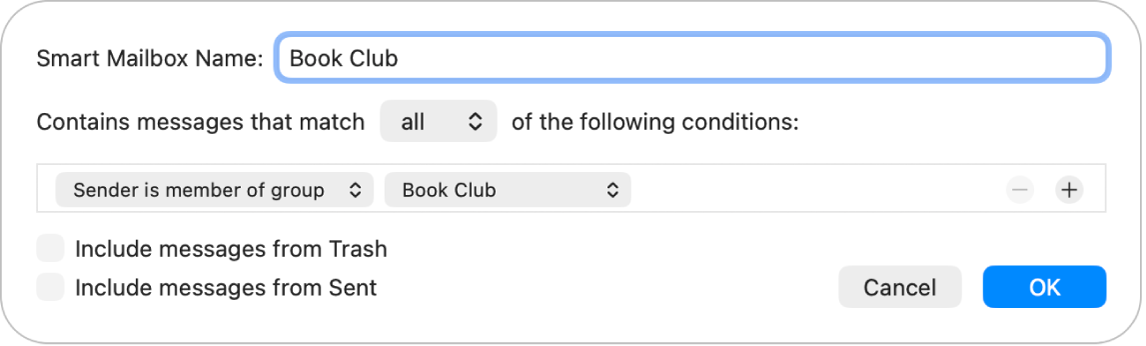
  3. Enter a name for the Smart Mailbox.

  4. Specify the criteria.

Set the first condition: Click the first pop-up menu, choose an option (such as From, Subject, or “Sender is member of group”), then complete the condition using the other menus or fields that are shown (they vary depending on your choice in the first pop-up menu).

For example, if you chose From, you can choose “contains” or “begins with” in the second pop-up menu, then enter a sender’s name in the text field. If you chose “Sender is member of group” in the first pop-up menu, you can choose a group name in the second pop-up menu.

  • Add or remove conditions: To set additional conditions, click . To remove a condition, click .

  • Set the scope of multiple conditions: If you have at least two conditions, a pop-up menu appears that lets you choose whether an email must meet any or all of the conditions to be included in the Smart Mailbox.

  • Include messages from the Trash or Sent mailbox: Select the checkbox to include emails that are in those mailboxes in your Smart Mailbox.

  1. Click OK.

    Whenever you select your Smart Mailbox in the sidebar, emails that match its criteria are listed.

To delete a Smart Mailbox, select it, then choose Mailbox > Delete Mailbox. The emails that were listed when you viewed the Smart Mailbox aren’t deleted.

AirPod Wireless Charging Compatibility

Charge your case wirelessly

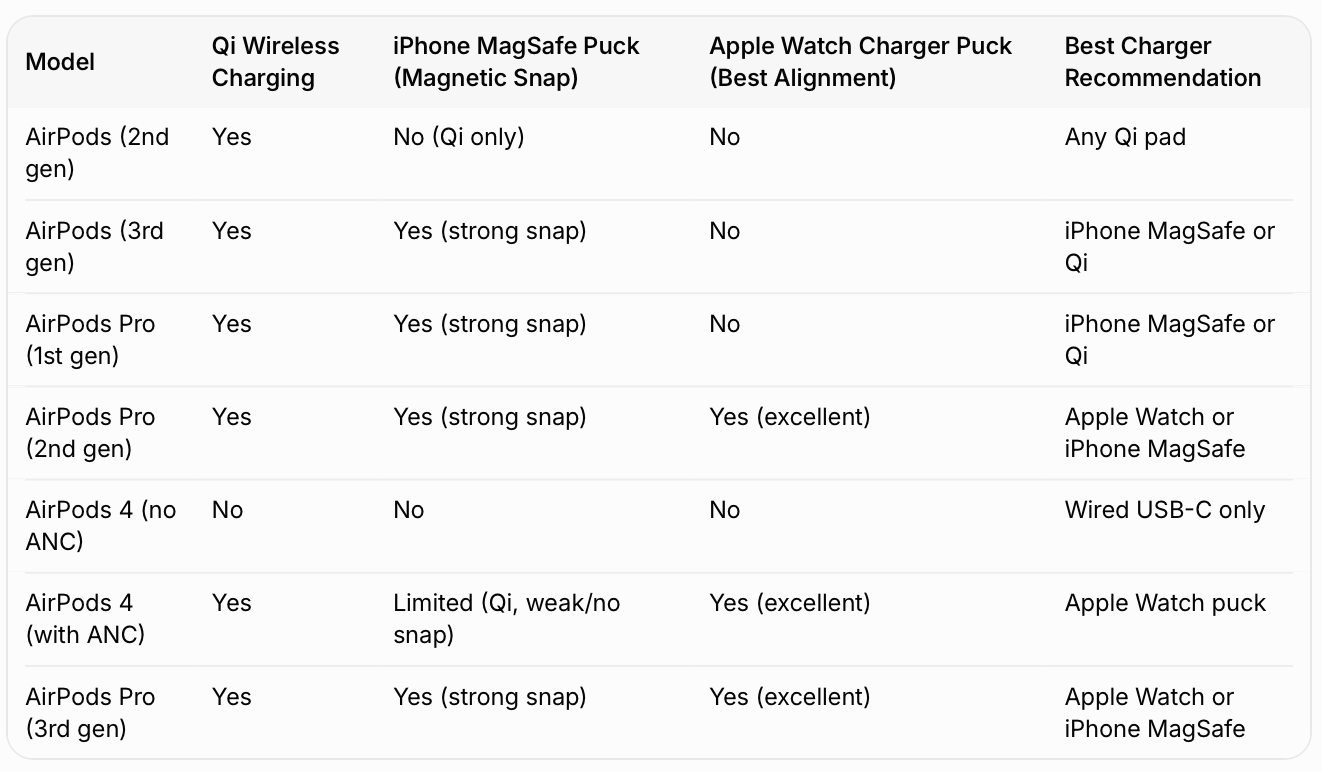
  • To charge your MagSafe Charging Case or Wireless Charging Case with a Qi-certified charging mat or MagSafe charger, place your case on the charger with the status light facing up and with the lid closed. The status light should show the current charge level for 8 seconds. If you have AirPods Pro 1, AirPods Pro 2, AirPods Pro 3, AirPods 3 or AirPods 4 (ANC), you can tap the case when it's on the charging mat to determine whether your AirPods are charging (amber light) or fully charged (green light).

  • To charge your MagSafe Charging Case (Lightning or USB-C) for AirPods Pro 2, your MagSafe Charging Case for AirPods Pro 3, or your Wireless Charging Case for AirPods 4 (ANC) with an Apple Watch charger, place your case on the charger with the status light facing up and with the lid closed. The status light should show the current charge level for 8 seconds. With the Wireless Charging Case for AirPods 4 (ANC), make sure to center the case flat on the charger.